Hybrid Deployment (The Transition Path)
Hybrid Architecture
Entra Hybrid Join & Coexistence With Entra Join
Best practice is Entra Hybrid Join for existing machines where we want to preserve user profiles. New machines get new profiles anyway so can start to employ Entra Join. Once all users have gone through their hardware refresh cycle, the company is 100% Entra Joined.
Windows Hello for Business GPO
Entra Hybrid Join is a prerequisite for WHfB in this deployment. Cloud Kerberos Trust adds a provisioning prerequisite check on hybrid-joined devices: WHfB setup will not launch until the device is domain-joined, registered with Entra ID, and the user receives a partial Kerberos TGT at sign-in (the proof that Entra Kerberos is deployed for the domain). Provisioning itself includes one interactive MFA step, so the user needs a registered MFA method or a Temporary Access Pass exactly once. Every WHfB logon after that mints a PRT carrying an MFA claim, which is what lets the background Intune enrollment process meet the MFA requirements of an "all resources" MFA Conditional Access policy without prompting the user. The GPO itself (the Cloud Kerberos Trust prerequisite plus the three policy settings) is defined in WHfB Setup & Troubleshooting → Setup, on the Hybrid Join (GPO) tab.
Intune Enrollment GPO
Hybrid Entra Joined machines are directed to enroll in Intune by an AD GPO (Entra Joined machines enroll in Intune directly at join time). The setting is Enable automatic MDM enrollment using default Microsoft Entra credentials with credential type User Credential; Device Credential is only supported for ConfigMgr co-management and AVD multi-session hosts. (Older ADMX central stores label the setting "...using default Azure AD credentials".) At each Group Policy refresh the client re-creates a scheduled task that retries enrollment every five minutes for one day, so enrollment self-heals once its prerequisites are met. Stage 6 below defines the GPO and its verification chain.
Conditional Access for Hybrid Join
Since we are deploying Windows Hello for Business before Intune enrollment, we don't need to create an exception in our MFA Conditional Access policies for the Microsoft Intune Enrollment app.
Order matters at runtime, not at GPO deployment time. Both GPOs can land in the same Group Policy refresh: WHfB provisioning idles on its prerequisite checks, and the enrollment task fails and retries. The chain on each machine is fixed regardless: Hybrid Join completes, the user provisions WHfB at the next sign-in, the next WHfB logon mints the MFA-bearing PRT, and the enrollment task's next retry succeeds silently. A mis-ordered rollout costs time, not state.
Hybrid Deployment Checklist
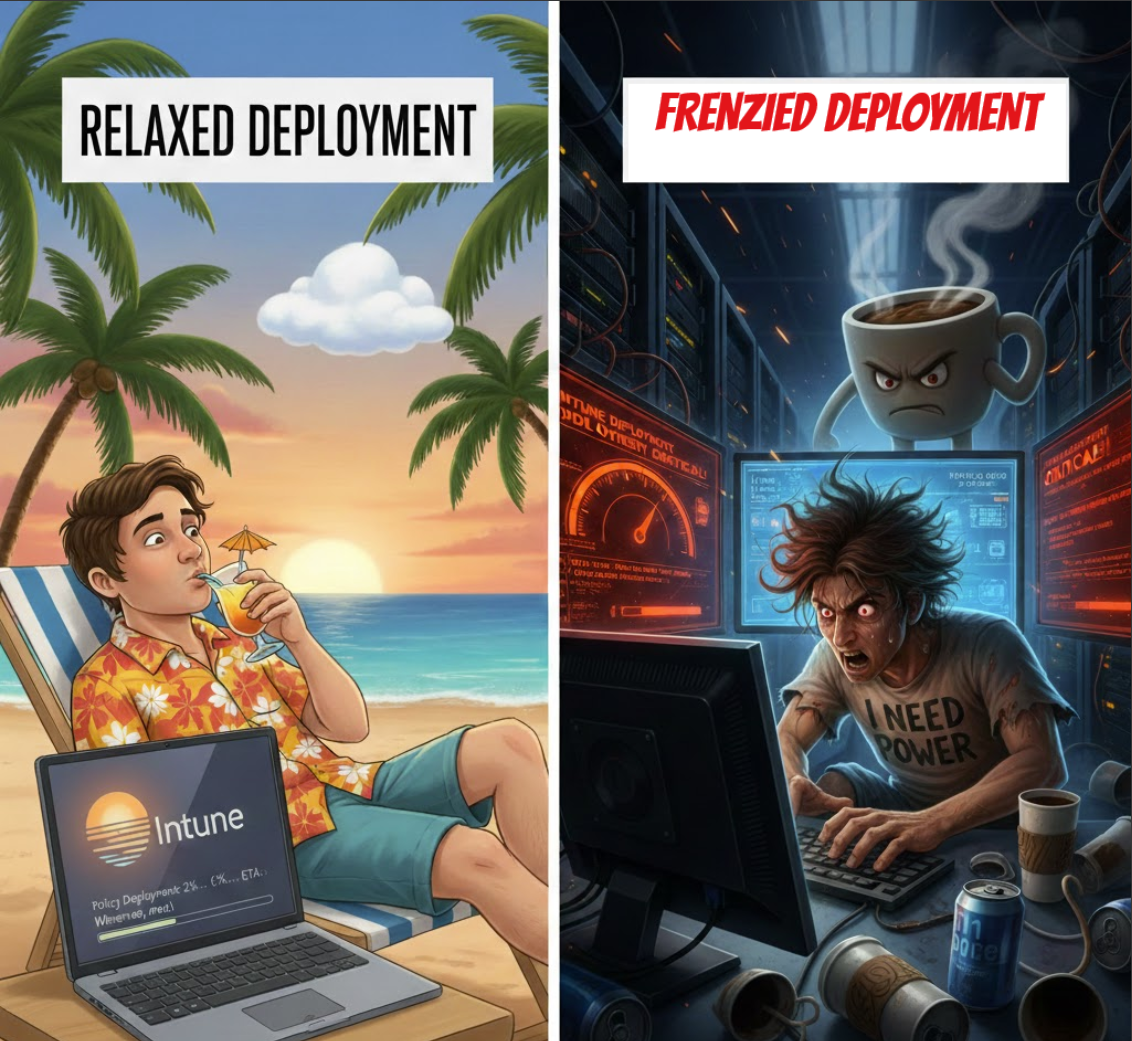
Microsoft endpoint management tends to be asynchronous. Machine checks in, something happens, machine checks in again, the next step happens. This leads to latency in policy application. Two approaches to these latencies are illustrated below. This deployment and troubleshooting is written to provide the commands to push the process along.
Stage 1: Tenant Device Settings
One blade, configured once for every join path. The canonical walkthrough, all nine settings in portal order, is Entra Join Stage 1: Tenant Device Settings.
Hybrid join registers devices through Entra Connect in a userless context, so three of the blade's rows do not gate this path at all: Users may join devices to Microsoft Entra, Require Multifactor Authentication to register or join devices, and Maximum number of devices per user. Confirm the two rows that do reach hybrid-joined devices:
- [ ] Enable Microsoft Entra Local Administrator Password Solution (LAPS): Yes. Entra LAPS supports Entra hybrid joined devices; the toggle only activates the feature, and the rotation schedule comes from the Intune Account protection policy referenced in the canonical section.
- [ ] Restrict users from recovering the BitLocker key(s) for their owned devices: Yes. Self-service recovery follows the registered device owner, which a hybrid-joined device has only when an Intune primary user is set.
Stage 2: Address Third Party Software
Third party encryption and antivirus can interfere with BitLocker and Defender for Endpoint.
- [ ] Third Party Encryption:
- Decrypt third party encrypted disks and uninstall third party encryption software.
- Otherwise, exclude this machine from BitLocker encryption to avoid double encryption.
- [ ] Third Party Antivirus:
- Uninstall third party antivirus software.
- Otherwise, Defender for Endpoint in passive mode can coexist with third party antivirus.
- Windows 10 & 11 (Automatic): Defender automatically flips to Passive Mode.
- Windows Server (Manual): Set registry to force Passive Mode before MDE onboarding.
- Path:
HKLM\SOFTWARE\Policies\Microsoft\Windows Advanced Threat Protection - Name:
ForceDefenderPassiveMode - Type:
REG_DWORD - Value:
1
- Path:
Stage 3: Create DNS Discovery Records
Before a device can enroll in Intune, it needs to know where to find your specific Intune cloud environment. It discovers this via public DNS, keyed off your company's domain name (e.g., user@contoso.com).
You must create two CNAME (Canonical Name) records in the public (and private) DNS settings for your domain (usually managed wherever you bought your domain, like GoDaddy, Cloudflare, or Network Solutions).
You must create these two records for every email domain your users sign in with (e.g., if users sign in with @contoso.com and @contoso.net, you need to create these records on both domains).
First DNS Record: Entra Hybrid Join
Entra Hybrid Join requires the device to receive instructions from an authoritative source in Active Directory. This either takes the form of a Group Policy Object (GPO) or a Service Connection Point (SCP). This conveys the intention of a trusted admin to manage settings on this device.
- GCC High
- Commercial
| Host Name | enterpriseregistration.[yourdomain.com] |
|---|---|
| Record Type | CNAME |
| Value | enterpriseregistration.microsoftonline.us |
| Purpose | Tells the device where to register its identity in Entra ID. |
Microsoft's hybrid join guidance requires US Government devices to reach both https://enterpriseregistration.windows.net and https://enterpriseregistration.microsoftonline.us, while the commercial DNS guidance points this CNAME at windows.net, so you will meet tenants configured either way. The sovereign value above is field-verified working for a GCC High hybrid join. Whichever target the CNAME carries, allow both hostnames through egress filtering.
| Host Name | enterpriseregistration.[yourdomain.com] |
|---|---|
| Record Type | CNAME |
| Value | enterpriseregistration.windows.net |
| Purpose | Tells the device where to register its identity in Entra ID. |
Second DNS Record: Intune Autoenrollment
If these CNAME records are missing, Stage 4 (joining the domain) might succeed, but Stage 6 (Intune Enrollment) will silently fail. The device will be joined to the network, but it will be "blind" to the Intune management servers.
- GCC High
- Commercial
| Host Name | enterpriseenrollment.[yourdomain.com] |
|---|---|
| Record Type | CNAME |
| Value | enterpriseenrollment-s.manage.microsoft.us |
| Purpose | Tells the device where the GCC High Intune enrollment server is located. |
| Host Name | enterpriseenrollment.[yourdomain.com] |
|---|---|
| Record Type | CNAME |
| Value | enterpriseenrollment-s.manage.microsoft.com |
| Purpose | Tells the device where the Commercial Intune enrollment server is located. |
Stage 4: Entra Hybrid Join
Entra Hybrid Join takes several steps and line-of-sight to a domain controller (may need VPN).
-
[ ] Entra Hybrid Join Targeted Deployment:
- GPOs allow you to create a targeted Entra Hybrid Join deployment.
gpupdate /forceto sync GPOs to this devicegpresult /r /scope computerto see what GPOs have been applied to this device- These are the registry keys applied by this GPO:
HKLM\SOFTWARE\Microsoft\Windows\CurrentVersion\CDJ\AAD\TenantIdHKLM\SOFTWARE\Microsoft\Windows\CurrentVersion\CDJ\AAD\TenantName
-
[ ] Entra Connect:
- Entra Connect needs to be configured for Entra Hybrid Join.
- Synchronization Service Manager provides a real-time view of adds, updates, and deletes.
-
[ ] Entra Hybrid Join Process:
-
A: User sign-in triggers Automatic Device Join task.
Task Scheduler Library>Microsoft>Windows>Workplace Join- Check the task's Status column first: it can arrive Disabled (field-verified on a client VM; some VM images and VDI optimization packs ship the Workplace Join tasks turned off). Right-click > Enable before running.
- Right-click the task named Automatic-Device-Join and select Run.
- Alternatively, you can type
dsregcmd /join. - You can see the results in Event Viewer
Applications and Services Logs>Microsoft>Windows> User Device Registration > Admin- Event ID 304 ("The registration of the device was successful").
- Event ID 305 (Registration failed). ex:
0x801c001d(SCP missing)
-
B: Task queries AD for service connection point (or registry for our targeted deployment).
- CRITICAL: May fail if VPN/Line-of-Sight is missing.
- CRITICAL: Fails if the device can't resolve the
enterpriseregistrationCNAME from Stage 3, or reach the DRS endpoints behind it (bothenterpriseregistration.windows.netandenterpriseregistration.microsoftonline.usmust be allowed outbound in GCC High).
# If using SCP (and not a targeted deployment) run this to see what your computers see in AD.$scp = Get-ADObject -Filter 'objectClass -eq "serviceConnectionPoint" -and name -eq "62a0ff2e-97b9-4513-943f-0d221bd30080"' -SearchBase (Get-ADRootDSE).configurationNamingContext -Properties keywords$scp.keywords -
C: Task creates a self-signed certificate and writes it to the computer object in AD.
-
D: Entra Connect detects and writes certificate to Azure DRS which (eventually) writes to Entra.
-
Synchronization Service Manager will display the computer object being sync'd to Entra.
-
The device will now show as "Pending" in the Entra Portal.
Devices Stuck In PendingThere is a common issue where an old "Entra Registered" (BYOD) record exists for the same machine. The duplicate record blocks the "Hybrid Joined" record from completing the handshake.
For a single wedged device: see the full clean-down and re-onboard procedure that preserves the user profile at Entra Device Hygiene § Single-Device Remediation. Quick fix from the local prompt: rundsregcmd /debug /leaveas SYSTEM to clear the local state, then delete the duplicate Entra record before retrying.
-
-
E: Task keeps retrying until step D is complete and Entra issues an ID token to the computer.
- If the task errors here with "device not found" (client code
0x801c03f3, server sub-codeerror_missing_device, message "The device object by the given id is not found"; the full signature appears in the Diagnostic Data section ofdsregcmd /statusand in this Microsoft Q&A thread), the computer object has not arrived in Entra yet. The documented resolution is to wait for the Entra Connect sync to finish; the next join attempt after the sync completes succeeds. Also confirm the computer's OU is inside the Entra Connect sync scope: an out-of-scope OU produces this error indefinitely, because the object never syncs. - If the synced device never appears at all, suspect the stale-record condition from the step D tip above. Field-verified unwedge sequence: delete the stale Microsoft Entra registered record in the Entra portal, force a sync cycle (
Start-ADSyncSyncCycle -PolicyType Deltaon the Entra Connect server, or wait for the next scheduled cycle), confirm the synced device now exists in Entra, then re-run the Automatic-Device-Join task; step E completes on the next pass.
- If the task errors here with "device not found" (client code
-
F&G: Task processes ID token and sends cert request to DRS which returns cert and updates Entra.
- The device status in the Entra Portal will now change from "Pending" to a joined date and time.
-
H: Device registration completed and task exits.
Once the background registration tasks finish, you must verify that the device has not only joined the directory but has also successfully "discovered" the Intune management endpoints.
-
Run the Verification Command: Open a Command Prompt and type:
dsregcmd /status -
Verify Identity & Auth State: In the Device State and User State sections, confirm the following:
AzureAdJoined : YES: The device has a unique identity in Entra ID.DomainJoined : YES: The device maintains its anchor to your local Active Directory.AzureAdPrt : YES: CRITICAL. This "Primary Refresh Token" is the secret sauce. Without aYEShere, the "Silent" Intune enrollment in Stage 6 will fail because the device cannot authenticate to the service without prompting the user.
-
Verify Discovery: Scroll down to the Tenant Details section. This is where you verify that the device "sees" your sovereign cloud tenant:
- GCC High
- Commercial
MdmUrl: Must point tohttps://enrollment.manage.microsoft.us/enrollmentserver/discovery.svcMdmTouUrl: Must point tohttps://portal.manage.microsoft.us/TermsofUse.aspx
Critical Sovereign CheckIf MdmUrl points to a .com address, the machine is attempting to enroll in Commercial.
MdmUrl: Must point tohttps://enrollment.manage.microsoft.com/enrollmentserver/discovery.svcMdmTouUrl: Must point tohttps://portal.manage.microsoft.com/TermsofUse.aspx
Critical Cloud CheckIf MdmUrl points to a
.usaddress instead of.com, the machine is enrolling in the wrong cloud. -
Troubleshooting Discovery (The DNS Link):
-
If the MDM URLs are blank: The device identity is registered, but it is "blind" to the Intune service.
-
The Check: Verify your Public DNS (and Internal DNS if split-brain) contains the following CNAME record for every UPN suffix in use:
- GCC High
- Commercial
Host Name enterpriseenrollment.[yourdomain.com]Record Type CNAME Value enterpriseenrollment-s.manage.microsoft.usPurpose Tells the device where the GCC High Intune enrollment server is located. Host Name enterpriseenrollment.[yourdomain.com]Record Type CNAME Value enterpriseenrollment-s.manage.microsoft.comPurpose Tells the device where the Commercial Intune enrollment server is located. -
The Scope: Ensure the user's account is included in the MDM User Scope under Entra ID > Mobility (MDM and MAM) > Microsoft Intune.
-
-
Success Indicator (Entra Portal): In the Entra Admin Center, the device record should move from a "Pending" status to displaying a specific Join Type (Microsoft Entra hybrid joined) with a valid Registered date and time.
-
-
Stage 5: Windows Hello for Business
Unlike Entra Join, where enrollment is interactive, Intune enrollment for Hybrid Joined machines runs as a background, non-interactive task. It authenticates using the Primary Refresh Token (PRT) from the user's current Windows logon session. If that PRT carries no MFA claim (which is the case after a plain password login), the enrollment task fails silently with Event ID 76 (0x8018002A: MFA required). WHfB at Windows logon is what mints a PRT carrying the phishing-resistant MFA claim the background task needs.
WHfB provisioning launches only when every precondition holds, and one of them is that the user is not connected to the machine via Remote Desktop. A domain-joined VM that is only ever reached over RDP therefore never shows the enrollment ceremony, and Stage 6 starves: no WHfB logon means no MFA-bearing PRT.
Field-verified bootstrap: have the user complete an interactive MFA sign-in through a WAM-brokered app inside the VM (signing in to classic Outlook works). MFA performed during a WAM interactive sign-in updates the PRT with the MFA claim, and the enrollment task's next retry succeeds without WHfB. This bootstraps enrollment only; for steady-state phishing-resistant sign-in on RDP-only machines, use the PIV and FIDO2 options referenced below.
For GPO configuration steps (Cloud Kerberos Trust + WHfB GPO), diagnostic commands (dsregcmd /status Ngc fields, Event Viewer logs), and common silent blockers, see Windows Hello for Business Setup & Troubleshooting.
For the full set of phishing-resistant Windows logon options including PIV cards and FIDO2 NFC keys for environments where cameras, fingerprint readers, and USB ports are not viable, see Phishing-Resistant Authentication.
Stage 6: Intune Enrollment
Entra Hybrid Join and Windows Hello for Business prepares machines for Intune enrollment.
The Intune EDR policy is safe by construction: it cannot reach a device before enrollment, and enrollment cannot precede the hybrid join. The Group Policy and script onboarding paths are not. An onboarding GPO that lands in the same policy cycle as the hybrid-join GPO usually runs first, and Security Settings Management then mints a synthetic Entra device object for the sensor; the hybrid join later lands a second object for the same machine, Conditional Access evaluates the wrong one, and users on a correctly joined device fail with AADSTS53001 or AADSTS53000. Gate any non-Intune onboarding on AzureAdJoined: YES with the wrapper in Defender for Endpoint Path B.
When you are in the "Frenzied Deployment" phase, waiting 2-24 hours for an Entra ID Dynamic Group to calculate membership is painful.
Best Practice: Target your policies to "All Devices" and use Intune Filters (e.g., device.model -startsWith "Surface") to include/exclude machines.
Why: Filters are evaluated by the Intune engine at check-in time (milliseconds), whereas Dynamic Groups rely on the background Entra ID sync cycle (hours).
-
[ ] Verify Licensing:
- Does the user logging in have an Intune Plan 1 (or M365 G3/G5) license assigned active?
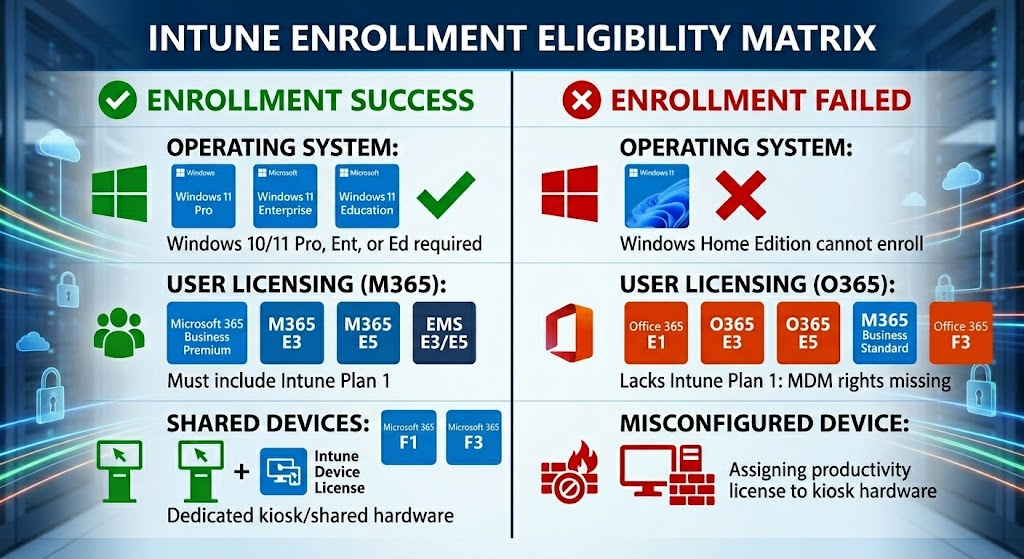
- Does the user logging in have an Intune Plan 1 (or M365 G3/G5) license assigned active?
-
[ ] Entra Configuration for Intune Enrollment: set MDM User Scope and WIP User Scope, and verify the MDM terms of use, discovery, and compliance URLs (the sovereign
.usendpoints in GCC High), per Entra Join Stage 3: Entra Configuration. The MDM scope, the WIP=None trap, and the.usURL check apply identically to hybrid; the rest of this stage is what makes hybrid different. -
Computer Configuration > Administrative Templates > Windows Components > MDM > Enable automatic MDM enrollment using default Microsoft Entra credentials- Set Enabled, and choose User Credential in the Select Credential Type to Use dropdown.
- To verify GPO application: run
gpresult /r /scope computer.- Look for policy named as above.
-
[ ] Task Scheduler:
Microsoft > Windows > EnterpriseMgmtand find the task Schedule created by enrollment client for automatically enrolling in MDM from Microsoft Entra ID- You can check last run result for any errors. The task runs every five minutes for one day; the Task Scheduler Operational log shows Event 107 (triggered) and 102 (completed), but 102 fires on failure too, so only Event ID 75 below proves success.
- A vanished task is a success signal, not a problem. After enrollment succeeds the task disappears from
EnterpriseMgmt(field-verified); confirm with Event ID 75 and the Entra device record showing MDM: Microsoft Intune rather than hunting for the missing task.
-
[ ] Event Viewer Error Checking:
- Check Event Viewer:
Applications and Services Logs > Microsoft > Windows > DeviceManagement-Enterprise-Diagnostics-Provider > Admin. - Look for Event ID 75 ("Auto MDM Enroll: Succeeded"): the definitive success record.
- Look for Event ID 76 indicating failure (Example: 0x8018002A due to missing MFA claim).
- Example Root Cause: Missing Primary Refresh Token (PRT).
- Expect portal lag after success: the device can take hours (overnight, field-verified) to appear in the Intune admin center device list even though Event 75 fired and the Entra device record already shows Intune as the MDM. Believe the event log and the Entra record, not the empty Intune list.
- Example Fix: Ensure user has signed into Windows Hello for Business or a Microsoft 365 App (Teams/Outlook) to acquire a PRT.
- Check Event Viewer:
-
[ ] Manual Intune Enrollment
-
If the device shows as Managed by MDE in the Intune portal, enrollment has not happened and the sensor arrived first: Security Settings Management created a synthetic Entra object for it (blank join type,
managementType = MicrosoftSense). Keep the hybrid object and remove the synthetic one per Defender for Endpoint Path B and the identification table, then retry enrollment below. -
Force Retry Command:
%windir%\system32\deviceenroller.exe /c /AutoEnrollMDM- Note: This command produces no output. Check Task Manager to see
deviceenroller.exerunning briefly, or refresh the Event Viewer log after 30 seconds.
- Note: This command produces no output. Check Task Manager to see
-
Force Policy Sync (UI Method):
- If the Info button is present (see above), click it.
- Scroll down to Device sync status.
- Click the Sync button.
- Why: This forces the device to reach out to Intune immediately for the latest policies, scripts, and app installs without waiting for the scheduled background cycle.
-
Success Indicators:
- Visual Verification (The "Info" Button)
- Open Settings > Accounts > Access work or school.
- Click the connected domain/account (e.g.,
connected to contoso.com). - Success: You see an Info button. This confirms the device is MDM enrolled.
- Failure: You only see a Disconnect button. This usually means the device is Entra Registered but not Intune Enrolled.
- Run
dsregcmd /status- User State
WamDefaultSet: YESWamDefaultAuthority: organizations
- User State
- Visual Verification (The "Info" Button)
-
Success: The device is Hybrid Joined, Intune enrolled, and operating under policy. At this point the device should appear as Compliant in the Intune portal (once compliance policies evaluate) and the user should be able to access cloud resources without additional MFA prompts after signing in with Windows Hello for Business.
-
-
[ ] Security onboarding landed (15 to 30 minutes after enrollment): the Layer 1 EDR policy now onboards the device to Defender for Endpoint and, by the same act, to Purview Endpoint DLP, with no further action. Confirm with Defender for Endpoint Step 3 and the Purview device list. The remaining post-enrollment checks, steps 8 and 9 of the new-device golden path, apply to hybrid devices unchanged.
📩 Don't Miss the Next Solution
Join the list to see the real-time solutions I'm delivering to my GCC High clients.