Modern Endpoint Operations
The Management Model
Traditional endpoint management required a device to be on the corporate network, or connected via VPN, to receive Group Policy updates, software deployments, and compliance checks. Modern management inverts this: Intune is the source of truth, and devices communicate directly with Microsoft's cloud services over the internet regardless of location.
| Traditional (GPO/SCCM) | Modern (Intune/Cloud-Native) |
|---|---|
| Domain Controller required for policy delivery | Policy delivered over internet, no DC required |
| VPN required for remote management | Native cloud communication from any network |
| Software deployed from on-prem distribution points | Apps delivered from Intune or Microsoft CDN |
| Compliance enforced at login (Group Policy) | Compliance evaluated continuously, access gated by Conditional Access |
| Manual imaging and re-imaging | Zero-touch provisioning via Autopilot |
How Policy Reaches Devices
Intune does not push policy to devices on demand. Devices check in on a schedule and pull pending policy changes, app assignments, and compliance evaluations.
Check-In Cycle
| Trigger | Frequency |
|---|---|
| Scheduled check-in (enrolled devices) | Every 8 hours |
| After device restart | Within minutes of boot |
| After user signs in | Within minutes of sign-in |
| After an Intune policy change | Within 15 minutes (Intune sends a push notification to wake the device) |
| Manual sync (user-initiated) | Settings > Accounts > Access work or school > Info > Sync |
| Admin-forced sync | Intune portal > Devices > [device] > Sync |
When you need a device to pull a new policy immediately, use Intune > Devices > [device] > Sync from the portal, or have the user go to Settings > Accounts > Access work or school, click the connection, and click Info > Sync. Allow 5–10 minutes after sync before checking policy application.
Policy Conflict Resolution
When multiple policies target the same setting, Intune resolves conflicts using this hierarchy:
- Endpoint Security policies (highest priority: security baselines, compliance policies, antivirus)
- Settings Catalog / Configuration profiles (evaluated by assignment priority)
- Administrative Templates (ADMX-backed GPO equivalents)
- Device Restrictions templates (lowest priority)
If two policies at the same level conflict on the same setting, Intune marks the setting as "Conflict" and neither value applies: the device retains whatever value was previously set (or the Windows default). Conflicts surface in Intune > Devices > [device] > Device configuration.
Reading Device Status
Key Status Indicators in Intune
Navigate to Intune > Devices > Windows > All devices and select a device to view its status summary.
| Field | What It Tells You |
|---|---|
| Compliance state | Whether the device meets your compliance policies. Non-compliant devices are typically blocked by Conditional Access. |
| Last check-in | When the device last communicated with Intune. Devices not seen in 30+ days may be stale or off-network. |
| Enrollment type | How the device was enrolled (Autopilot, manual, bulk token, etc.) |
| Managed by | Should read "Intune" for fully managed devices. "MDM/WIP" indicates app-only MAM enrollment. |
| Ownership | Corporate or Personal. Corporate designation is required if enrollment restrictions block personal devices. |
On-Device Verification
dsregcmd /status
Key fields to check:
| Field | Expected Value | If Wrong |
|---|---|---|
AzureAdJoined | YES | Device is not Entra joined: check join type |
DomainJoined | NO (cloud-only) or YES (Hybrid) | Mismatch indicates misconfiguration |
MDMUrl | .microsoft.us (GCC High) or .microsoft.com (Commercial) | Enrolling to wrong cloud |
MDMEnrolled | YES | Check MDM User Scope in Entra |
AzureAdPrt | YES | User has a valid cloud token, required for SSO and CA |
Windows Update Rings Overview
Update rings control when Windows quality and feature updates are offered to devices. Each ring defines three key settings that together determine exactly when a device will force-reboot to apply an update.
| Setting | What It Controls |
|---|---|
| Deferral period | How many days after Microsoft publishes an update before the device is even allowed to see it. Use this to let early adopters or Microsoft's own fleet validate the update before it reaches your users. |
| Deadline | How many days after the device first discovers the update before the reboot becomes mandatory. Users can postpone within this window. |
| Grace period | A minimum buffer (in days) given to the user after the install reaches "Pending Restart" state, even if the deadline has already passed. Prevents a forced reboot from happening mid-meeting when a device was offline during the deadline window. |
The diagram below shows how these three settings interact from the moment Microsoft publishes an update to the mandatory forced reboot:
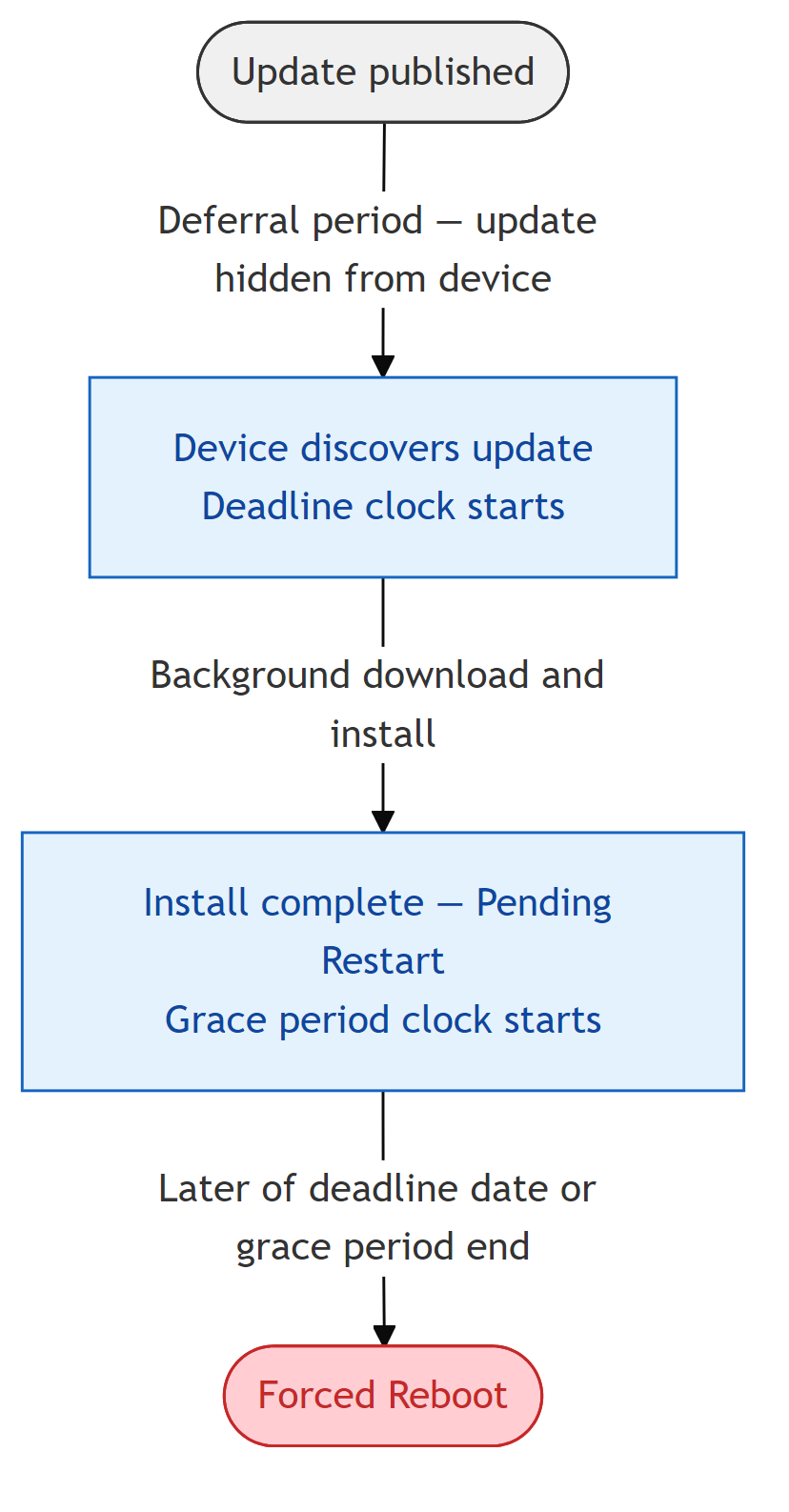
A two-ring model works well for most organizations: a Pilot ring (0-day deferral, 2-day deadline, 1-day grace) for IT staff, and a Production ring (7-day deferral, 5-day deadline, 2-day grace) for all users. This gives you a one-week window to catch problematic updates before they reach the full fleet without leaving devices unpatched for extended periods.
📩 Don't Miss the Next Solution
Join the list to see the real-time solutions I'm delivering to my GCC High clients.