Conditional Access Policies
This framework implements defense-in-depth based on three pillars:
- Identity Protection: Use Restricted Management Administrative Units. Require phishing-resistant authentication for admins. Employ emergency break-glass accounts to prevent lockout. Enforce MFA for all roles (admins, users, guests).
- Risk Reduction: Block legacy authentication, untrusted geographic locations, and high-risk flows like device code flow. Block access, require MFA, or require password changes based on risk.
- Device Compliance: Require compliant devices for unrestricted access. Prevent thick-client access on unmanaged (BYOD) desktops. Enforce limited web-only access and require Intune App Protection for mobile access to Office 365.
Policy Catalog
Identity Protection
| ID | Policy Name | Target |
|---|---|---|
| A001 | Require MFA | All Users |
| A002 | Require Phishing Resistant Auth | High-Value Targets |
| G001 | Require MFA for All Guests | External Users |
| P001 | Require MFA for Admins | Directory Roles |
| P002 | Require MFA for Service Management | Admin Portals |
| P003 | Require MFA for Device Registration | Device Join |
Risk Reduction
| ID | Policy Name | Risk Trigger |
|---|---|---|
| B000 | MFA for Medium Risk Sign-Ins | Sign-in Risk: Medium |
| B001 | Block Legacy Authentication | Legacy Clients |
| B002 | Block Non-Approved Locations | Geo-IP |
| B003 | Block Device Code Flow | Device Code |
| B004 | Block Non-Approved Service Account Usage | Service Account + Location |
| B005 | Block Non-Approved Security Registration | MFA Registration + Location |
| B006 | Block Non-Approved Device Registration | Device Registration + Location |
| B007 | Block High Risk Sign-Ins | Sign-in Risk: High |
| B008 | Password Change High Risk Users | User Risk: High |
Device Compliance
| ID | Policy Name | Grant Control |
|---|---|---|
| B009 | [BYOD] Block Thick Clients | Compliant Device |
| P004 | [BYOD] Enforce Limited Web Access | App Enforced Restrictions |
| P005 | [BYOD] Enforce Mobile App Protection | App Protection Policy |
| P006 | Require Compliant Devices | Compliant Device |
Pillar 1: Identity Protection
Administrative Units
CA Security Groups
Conditional Access policies can be bypassed by manipulating the Security Groups used to create them. Therefore, all Security Groups should be managed in a Restricted Management Administrative Unit (RMAU).
Temporary Access Passes
If TAP is the only way to bypass your strongest authentication factor, then TAP becomes the “Golden Ticket.” If an attacker tricks the helpdesk into issuing a TAP, they own the account. We want to restrict both who can be issued TAPs and who can issue TAPs using a Restricted Management AU.
- Who can be issued TAPs: Users in an
AAD_TAP_Usersgroup, in an RMAU. - Who can issue TAPs: Admins assigned the Authentication Administrator role.
- Delegate, Automate: Delegate to a small team. Better: automate with facial recognition.
First, this limits the set of users who can be issued TAPs, rather than making TAP a standing capability for all users. Second, decoupling the “ability to reset passwords” from the “ability to issue TAPs” reduces the set of people who can issue a TAP. Both limit the blast radius of a social engineering attack.
Account Recovery
Resetting a password is relatively safe – the person whose password was reset by an attacker will complain if their password doesn’t work. Adding a new passkey to an account is more dangerous; a passkey can be added without disrupting a user’s existing credentials. Here are the steps to enable passkey recovery based on these conditional access policies:
- Add the user to the
AAD_TAP_Usersgroup. - Provide the user with a one-time Temporary Access Pass.
- Have the user provision a new passkey with the Temporary Access Pass.
- Delete the Temporary Access Pass.
- Remove the user from the
AAD_TAP_Usersgroup.
Phishing Resistance
Phishing is the largest attack vector. Enforcing phishing-resistant authentication for your users is the most effective way to defend against it.
Authentication methods | Policies | Passkey (FIDO2)
Enable and Target
- Enabled for all users.
Configure
-
Allow self-service setup: Yes
-
Enforce attestation: Yes
- Authenticator with Passkey with attestation enforced will fail cross-device registration. This Microsoft Learn article and this Jan Bakker post explain this.
-
Enforce key restrictions: Yes
-
Restrict specific keys: Allow
-
2fc0579f-8113-47ea-b116-bb5a8db9202a (YubiKey 5 Series with NFC)
-
a25342c0-3cdc-4414-8e46-f4807fca511c (YubiKey 5 Series with NFC)
-
cb69481e-8ff7-4039-93ec-0a2729a154a8 (YubiKey Nano)
-
ee882879-721c-4913-9775-3dfcce97072a (YubiKey Nano)
-
19083c3d-8383-4b18-bc03-8f1c9ab2fd1b (YubiKey Nano)
-
ff4dac45-ede8-4ec2-aced-cf66103f4335 (YubiKey Nano)
-
-
Microsoft Authenticator: [checked]
Authentication methods | Auth strengths | Phishing-resistant auth + TAP
- Windows Hello for Business / Platform Credential, OR
- Passkeys (FIDO2) (same options as in the authentication method), OR
- Temporary Access Pass (One-time use), OR
- Temporary Access Pass (Multi-use)
Enable Recovery Without Touching Conditional Access
Users who need to register a replacement passkey after losing or upgrading their phone are in a bind. They need a passkey to register a passkey. A custom auth strength that requires phishing-resistant authentication OR a Temporary Access Pass allows your helpdesk to issue TAPs without needing to exclude users from phishing-resistant authentication enforcement policies.
Break-Glass Accounts
Two break-glass accounts are excluded from all CA policies. This reduces the chance of tenant lockout due to misconfiguration or outage. These accounts should:
- use security keys (e.g., YubiKey) for strong auth with minimal cloud dependency
- be on the “.onmicrosoft” domain to have no dependencies on on-premises
- have a very long password that is stored securely
These accounts are:
svr_ea_01: [credentials stored in Keeper]svr_ea_02: [credentials stored in Keeper]
Expiration Periods
By default, Microsoft Entra ID uses a rolling 90-day window for its sign-in frequency.
A001 Require MFA
Assignments – Users:
-
Include: All users
-
Exclude:
- AAD_Emergency_Admin_Exclusions
- AAD_MFA_Exempt_Users
- AAD_Phishing_Resistant_Auth_Enforcement
- AAD_Service_Accounts
-
Assignments – Target resources:
-
Include: All resources
-
Exclude: None
-
-
Access Controls – Grant: Require multifactor authentication
A002 Require Phishing Resistant Auth
Assignments – Users:
- Include: AAD_Phishing_Resistant_Auth_Enforcement
- Exclude: AAD_Emergency_Admin_Exclusions
Assignments – Target resources:
- Include: All resources
- Exclude: Microsoft Intune Enrollment, Microsoft Intune
Access Controls – Grant: Require authentication strength:
- Phishing-resistant + TAP
G001 Require MFA for All Guests
Assignments – Users:
- Include: Guest or external users (all types)
- Exclude: AAD_Emergency_Admin_Exclusions
Assignments – Target resources: Include “all resources”; Exclude: none
Access Controls – Grant: Require multifactor authentication
P001 Require MFA for Admins
Assignments | Users:
- Include: 14 recommended Directory roles
- Exclude: AAD_Emergency_Admin_Exclusions
Assignments | Target resources: Include “all resources”; Exclude: none
Access Controls | Grant: Require multifactor authentication
P002 Require MFA for Service Management
Assignments | Users:
- Include: All Users
- Exclude: AAD_Emergency_Admin_Exclusions
Assignments | Target resources: Include “Microsoft Admin Portals”
Access Controls | Grant: Require multifactor authentication
P003 Require MFA for Device Registration
Assignments | Users:
- Include: All Users
- Exclude: AAD_Emergency_Admin_Exclusions
Assignments | Target resources: User actions | Register or join devices
Access Controls | Grant: Require multifactor authentication
Pillar 2: Risk Reduction
B000 Multifactor re/authentication for Medium Risk Sign-Ins
Assignments – Users:
- Include: All Users
- Exclude: AAD_Emergency_Admin_Exclusions
Assignments – Target resources: Include “all resources”
Conditions | Sign-in Risk: Medium
Access Controls | Grant: Require multifactor authentication
Session: Sign-in Frequency – Every time
B001 Block Legacy Authentication
Assignments | Users:
- Include: All Users
- Exclude: AAD_Emergency_Admin_Exclusions
Assignments | Target resources: Include “all resources”
Conditions | Client apps: Exchange ActiveSync clients, Other clients
Access Controls | Grant: Block
B002 Block Non-Approved Locations
Assignments – Users:
- Include: All Users
- Exclude:
- AAD_Emergency_Admin_Exclusions
- EID Security - Travel Exceptions
Assignments – Target resources: Include “all resources”
Network: Exclude Approved Countries for Normal Business
Access Controls | Grant: Block
B003 Block Device Code Flow
Assignments | Users:
- Include: All Users
- Exclude: AAD_Emergency_Admin_Exclusions
Assignments | Target resources: Include “all resources”
Conditions | Authentication flows: Device code flow
Access Controls | Grant: Block
B004 Block Non-Approved Service Account Usage
Assignments – Users:
- Include: AAD_Service_Accounts
- Exclude: AAD_Emergency_Admin_Exclusions
Assignments – Target resources: Include “all resources”
Network: Exclude Approved Countries for Normal Business
Access Controls | Grant: Block
B005 Block Non-Approved Security Registration
Assignments – Users:
- Include: AAD_Service_Accounts
- Exclude: AAD_Emergency_Admin_Exclusions
Assignments – Target resources: User actions | Register security information
Network: Exclude Approved Countries for Normal Business
Access Controls | Grant: Block
B006 Block Non-Approved Device Registration
Assignments – Users:
- Include: All Users
- Exclude: AAD_Emergency_Admin_Exclusions
Assignments – Target resources: Microsoft Intune Enrollment, Microsoft Intune
Network: Exclude Approved Countries for Normal Business
Access Controls | Grant: Block
B007 Block High Risk Sign-Ins
Assignments – Users:
- Include: All users
- Exclude: AAD_Emergency_Admin_Exclusions
Assignments – Target resources: Include “all resources”
Conditions | Sign-in Risk: High
Access Controls | Grant: Block
B008 Password Change High Risk Users
Assignments – Users:
- Include: All users
- Exclude: AAD_Emergency_Admin_Exclusions
Assignments – Target resources: Include “all resources”
Conditions | Sign-in Risk: High
Access Controls | Grant: Require Password Change
Pillar 3: Device Compliance
B009: [BYOD] Block Thick Client Access
I've had clients insist that there was no access from BYOD/unmanaged devices in their environment, enable this policy, and have their helpdesk flooded with calls from users who can't work. Be aware before blocking.
This policy will block Microsoft 365 sign-ins from thick clients on unmanaged desktops (excluding iOS and Android devices). In practice, a user on a personal laptop cannot sign in with Outlook desktop, the Teams desktop client, the OneDrive sync client, etc. This drives those users to use web access, where P004 will apply restrictions. Meanwhile, users on Hybrid AD-joined PCs will meet the policy’s device requirement and can sign in with Outlook, Teams, and other clients with full access (no restrictions). Mobile access is addressed by P005.
Assignments | Users:
-
Include: AAD_Users_On_Managed_Devices
-
Exclude: AAD_Emergency_Admin_Exclusions, AAD_External_Consultants
Assignments | Target resources: All cloud apps
Conditions | Device Platforms:
-
Include: Windows, macOS
-
Exclude: IOS and Android
Relies on P005 to secure access from unmanaged iOS/Android
Conditions | Client Apps:
-
Include: All client apps
-
Exclude: Browser
Relies on P004 to secure browser access from unmanaged desktops
Access Controls | Grant:
-
Require device to be marked as compliant OR
-
Require Microsoft Entra Hybrid joined device
- User Experience
- Configuration Details
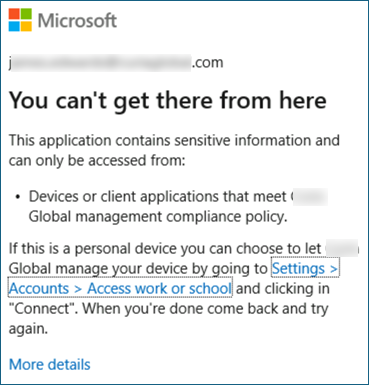
Blocked users will see the standard "You can't get there from here" message.
Here is the JSON for creating this conditional access programmatically. Key grant controls are highlighted.
{
  "displayName": "B009: [BYOD] Block Thick Client Access",
  "state": "enabled",
  "conditions": {
    "users": {
      "includeGroups": [
        "{{Object-ID-of-AAD_Users_On_Managed_Devices}}"
      ],
      "excludeGroups": [
        "{{Object-ID-of-AAD_Emergency_Admin_Exclusions}}",
        "{{Object-ID-of-AAD_External_Consultants}}"
      ]
    },
    "applications": {
      "includeApplications": [
        "All"
      ]
    },
    "platforms": {
      "includePlatforms": [
        "windows",
        "macOS"
      ],
      "excludePlatforms": [
        "iOS",
        "android"
      ]
    },
    "clientAppTypes": [
      "mobileAppsAndDesktopClients",
      "exchangeActiveSync",
      "other"
    ]
  },
  "grantControls": {
    "operator": "OR",
    "builtInControls": [
      "compliantDevice",
      "domainJoinedDevice"
    ]
  }
}
P004 [BYOD] Enforce Limited Web Access
When a user accesses Exchange Online or Teams/SharePoint via a web browser on an unmanaged device, this policy kicks in and signals the cloud apps to enforce limited access. Exchange Online (OWA) will operate in a read-only mode for attachments (users cannot download or save attachments from email). SharePoint and OneDrive will similarly block the download, print, and sync options for files. The Teams web app will allow chatting and online meetings, but if a user attempts to open or download a file in Teams, they will only be able to view it online (no download option). In short, users on unmanaged devices still have browser access to email, Teams, and files, but cannot download files or attachments to those devices, satisfying the data protection requirement. Users on Hybrid-joined devices are not impacted by this limited-access policy when using supported browsers, so they retain full functionality. You should verify that the user experience matches expectations before enabling broadly.
Assignments – Users:
- Include: AAD_Users_On_Managed_Devices
- Exclude: AAD_Emergency_Admin_Exclusions, AAD_Consultants
Assignments | Target resources: Office 365
Conditions:
-
Client apps = Browser
Hybrid joined or compliant devices are not impacted because they satisfy the managed device Conditional Access policy. This prevents them from reaching this app-enforced restrictions policy, so SharePoint receives a full access session instead of a limited one.
Session: Select “Use app enforced restrictions”
- User Experience
- Configuration Details
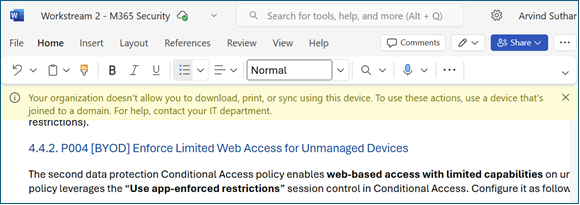
The limited experience will look like this.
Here is the JSON for creating this conditional access programmatically. Key session control is highlighted.
{
  "displayName": "P004 [BYOD] Enforce Limited Web Access",
  "state": "enabled",
  "conditions": {
    "users": {
      "includeGroups": [
        "{{Object-ID-of-AAD_Users_On_Managed_Devices}}"
      ],
      "excludeGroups": [
        "{{Object-ID-of-AAD_Emergency_Admin_Exclusions}}",
        "{{Object-ID-of-AAD_Consultants}}"
      ]
    },
    "applications": {
      "includeApplications": [
        "2793995e-0a7d-40d7-bd35-6968ba142197"
      ]
    },
    "clientAppTypes": [
      "browser"
    ],
    "deviceStates": {
      "excludeDeviceStates": [
        "compliant",
        "domainJoined"
      ]
    }
  },
  "grantControls": {
    "operator": "OR",
    "builtInControls": [
      "block"
    ]
  },
  "sessionControls": {
    "applicationEnforcedRestrictions": {
      "isEnabled": true
    }
  }
}
P005 [BYOD] Enforce Mobile App Protection
This Conditional Access policy requires the use of Intune app protection policies (MAM) when accessing Office 365 from mobile devices. This enables the use of Intune-defined app protection policies (more restrictive for BYOD devices, less restrictive for MDM devices), providing additional control beyond the “Use app-enforced restrictions” session control in the previous policy. We should test this policy, especially for managed mobile devices.
Assignments – Users:
- Include: AAD_Users_On_Managed_Devices
- Exclude: AAD_Emergency_Admin_Exclusions, AAD_Consultants
Assignments | Target resources: Office 365
Conditions | Client Apps: Select Mobile apps and desktop clients
Conditions | Device platforms: Select Android, iOS
Grant
- Require app protection policy
- User Experience
- Configuration Details
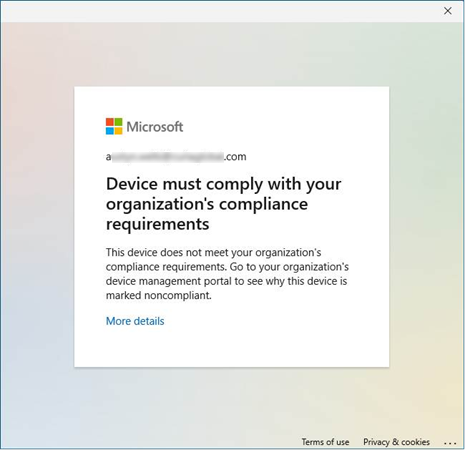
Users blocked by this policy will see an error like this.
Here is the JSON for creating this conditional access programmatically. Key session control is highlighted.
{
    "displayName": "P005 [BYOD] Enforce Mobile App Protection",
    "state": "enabledForReportingButNotEnforced",
    "conditions": {
        "userRiskLevels": [],
        "signInRiskLevels": [],
        "clientAppTypes": [
            "mobileAppsAndDesktopClients"
        ],
        "platforms": {
            "includePlatforms": [
                "android",
                "iOS"
            ]
        },
        "users": {
            "includeGroups": [
                "GUID-FOR-AAD_Users_On_Managed_Devices"
            ],
            "excludeGroups": [
                "GUID-FOR-AAD_Emergency_Admin_Exclusions",
                "GUID-FOR-AAD_Consultants"
            ]
        },
        "applications": {
            "includeApplications": [
                "00000002-0000-0ff1-ce00-000000000000",
                "00000003-0000-0ff1-ce00-000000000000"
            ]
        }
    },
    "grantControls": {
        "operator": "OR",
        "builtInControls": [
            "managedAppProtection"
        ]
    }
}
P006 Require compliant devices for O365, Azure, and Management
Assignments – Users:
- Include: AAD_Users_On_Managed_Devices
- Exclude: AAD_Emergency_Admin_Exclusions, AAD_Consultants
Assignments | Target resources:
-
Office 365
-
Microsoft Admin Portals
-
Windows Azure Service Management API
Access Controls | Grant:
- Require device to be marked as compliant OR
- Require Microsoft Entra Hybrid Joined device
- User Experience
- Configuration Details
Users blocked by this policy will see an error like this.
Here is the JSON for creating this conditional access programmatically. Key session control is highlighted.
{
    "displayName": "P006 Require compliant devices for O365, Azure, and Management",
    "state": "enabledForReportingButNotEnforced",
    "conditions": {
        "userRiskLevels": [],
        "signInRiskLevels": [],
        "clientAppTypes": [
            "all"
        ],
        "users": {
            "includeGroups": [
                "GUID-FOR-AAD_Users_On_Managed_Devices"
            ],
            "excludeGroups": [
                "GUID-FOR-AAD_Emergency_Admin_Exclusions",
                "GUID-FOR-AAD_Consultants"
            ]
        },
        "applications": {
            "includeApplications": [
                "00000002-0000-0ff1-ce00-000000000000",
                "00000003-0000-0ff1-ce00-000000000000",
                "797f4846-ba00-4fd7-ba43-dac1f8f63013"
            ]
        }
    },
    "grantControls": {
        "operator": "OR",
        "builtInControls": [
            "compliantDevice",
            "domainJoinedDevice"
        ]
    }
}