Conditional Access Policies
This framework implements defense-in-depth based on three pillars:
- Identity Protection: Use Restricted Management Administrative Units. Require phishing-resistant authentication for admins. Employ emergency break-glass accounts to prevent lockout. Enforce MFA for all roles (admins, users, guests).
- Risk Reduction: Block legacy authentication, untrusted geographic locations, and high-risk flows like device code flow. Block access, require MFA, or require password changes based on risk.
- Device Compliance: Require compliant devices for unrestricted access. Prevent thick-client access on unmanaged (BYOD) desktops. Enforce limited web-only access and require Intune App Protection for mobile access to Office 365.
Policy Catalog
Identity Protection
| ID | Policy Name | Target |
|---|---|---|
| A001 | Require MFA | All Users |
| A002 | Require Phishing Resistant Auth | High-Value Targets |
| G001 | Require MFA for All Guests | External Users |
| P001 | Require MFA for Admins | Directory Roles |
| P002 | Require MFA for Service Management | Admin Portals |
| P003 | Require MFA for Device Registration | Device Join |
Risk Reduction
| ID | Policy Name | Risk Trigger |
|---|---|---|
| B000 | MFA for Medium Risk Sign-Ins | Sign-in Risk: Medium |
| B001 | Block Legacy Authentication | Legacy Clients |
| B002 | Block Non-Approved Locations | Geo-IP |
| B003 | Block Device Code Flow | Device Code |
| B004 | Block Authentication Transfer | Authentication Transfer |
| B005 | Block Non-Approved Service Account Usage | Service Account + Location |
| B006 | Block Non-Approved Security Registration | MFA Registration + Location |
| B007 | Block Non-Approved Device Registration | Intune Apps + Location |
| B008 | Block High Risk Sign-Ins | Sign-in Risk: High |
| B009 | Password Change High Risk Users | User Risk: High |
Device Compliance
| ID | Policy Name | Grant Control |
|---|---|---|
| B010 | [BYOD] Block Thick Clients | Compliant Device |
| P004 | [BYOD] Enforce Limited Web Access | App Enforced Restrictions |
| P005 | [BYOD] Enforce Mobile App Protection | App Protection Policy |
| P006 | Require Compliant Devices | Compliant Device |
| B011 | [Token Theft] Require Token Protection | Token Protection (Session) |
Enclave Access Control
Applies only when deploying the AVD Secure Enclave pattern: an existing-tenant overlay that enforces CUI access from authorized session hosts only. These policies are scoped to AVD-Enclave-FCI-Users and do not affect the broader user population.
| ID | Policy Name | Grant Control |
|---|---|---|
| P004 | [Enclave] Require Compliant Device | Require compliant device (exclude AVD apps) |
| B012 | [Enclave] Device Block | Block (unless tagged device) |
| B013 | [Enclave] Network Block | Block (unless AZFW egress IP) |
| B014 | [Enclave] Auth Context: Device Block (E5) | Block auth context (unless tagged device) |
| B015 | [Enclave] Auth Context: Network Block (E5) | Block auth context (unless AZFW egress IP) |
Pillar 1: Identity Protection
Administrative Units
CA Security Groups
Conditional Access policies can be bypassed by manipulating the Security Groups used to create them. Therefore, all Security Groups should be managed in a Restricted Management Administrative Unit (RMAU)., named something like EID Restricted Management AU. Assign a set of trusted admins to the Groups Administrator role of this AU. You can use Privileged Identity Management to prevent users from having standing 24x7 membership in this group. Here are the security groups to be protected:
| Name | Description |
|---|---|
EID_Emergency_Admin_Exclusions | should have two exclusions |
EID_MFA_Exempt_Users | exemption group for troubleshooting - generally empty |
EID_New_CA_Test_Users | test scope for phased rollout of new CA policies |
EID_Phishing_Resistant_Auth_Enforcement | phishing resistant authentication enforcement |
EID_Service_Accounts | service accounts that cannot perform MFA |
EID_TAP_Users | should only contain users during active recovery |
EID_Users_On_Managed_Devices | group to enforce access from corporate devices |
Temporary Access Passes
If TAP is the only way to bypass your strongest authentication factor, then TAP becomes the “Golden Ticket.” If an attacker tricks the helpdesk into issuing a TAP, they own the account. We want to restrict both who can be issued TAPs and who can issue TAPs.
- Who can be issued TAPs: Users in an
EID_TAP_Usersgroup, in an RMAU. - Who can issue TAPs: Use the least-privileged role for the target account type:
| Target account | Role to use | Why |
|---|---|---|
| Standard users | Authentication Administrator | Can issue TAPs to non-admin users. Cannot issue TAPs to admin accounts: this is a platform-enforced restriction. |
| Admin accounts | Privileged Authentication Administrator (PIM-activated, approval required) | Can issue TAPs to any user including admins. Use only when an admin needs credential recovery, rare and auditable. |
Global Administrators can also issue TAPs to any user, but use the least-privileged role above: there is no technical control preventing GA issuance, only operational discipline.
- Delegate, Automate: Delegate to a small team. Better: automate with facial recognition.
Account Recovery
Resetting a password is relatively safe – the person whose password was reset by an attacker will complain if their password doesn’t work. Adding a new passkey to an account is more dangerous; a passkey can be added without disrupting a user’s existing credentials. Here are the steps to enable passkey recovery based on these conditional access policies:
- Add the user to the
EID_TAP_Usersgroup. - Provide the user with a one-time Temporary Access Pass.
- Have the user provision a new passkey with the Temporary Access Pass.
- Delete the Temporary Access Pass.
- Remove the user from the
EID_TAP_Usersgroup.
A common helpdesk shortcut is to temporarily add a locked-out user to an exclusion group (removing them from A002 Require Phishing Resistant Auth or a similar policy) until they re-register their credentials. This creates real risk:
- It widens the blast radius of a compromised helpdesk account. Any attacker who can social-engineer a password reset can also social-engineer a CA exclusion, and the exclusion is quieter: there is no "wrong password" moment to alert the user.
- The exclusion window is rarely minimal. "Temporary" exceptions in production often outlast their intent, especially when the removal step depends on a helpdesk ticket being closed.
- Policy scope is coarse. Excluding a user from a CA policy removes them from every control in that policy, not just the authentication method they lost.
The procedure above is the correct path. The TAP expires automatically, does not modify any policy, and generates a clear audit trail. The EID_TAP_Users group is in the RMAU so the helpdesk cannot add users to it without the appropriate role, limiting blast radius to a deliberate, time-bounded action.
This procedure requires that the CA policy enforcing phishing-resistant MFA uses the custom Phishing-resistant auth + TAP auth strength, not the built-in "Phishing-resistant MFA" strength. The built-in strength does not include TAP as an allowed method, so a user authenticating with a TAP would still be blocked.
Phishing Resistance
Phishing is the largest attack vector. Enforcing phishing-resistant authentication for your users is the most effective way to defend against it.
Authentication methods | Policies | Passkey (FIDO2)
Enable and Target
- Enabled for all users.
Configure
-
Allow self-service setup: Yes
-
Enforce attestation: Yes
- Authenticator with Passkey with attestation enforced will fail cross-device registration. This Microsoft Learn article and this Jan Bakker post explain this.
-
Enforce key restrictions: Yes
-
Restrict specific keys: Allow
-
2fc0579f-8113-47ea-b116-bb5a8db9202a (YubiKey 5 Series with NFC)
-
a25342c0-3cdc-4414-8e46-f4807fca511c (YubiKey 5 Series with NFC)
-
cb69481e-8ff7-4039-93ec-0a2729a154a8 (YubiKey Nano)
-
ee882879-721c-4913-9775-3dfcce97072a (YubiKey Nano)
-
19083c3d-8383-4b18-bc03-8f1c9ab2fd1b (YubiKey Nano)
-
ff4dac45-ede8-4ec2-aced-cf66103f4335 (YubiKey Nano)
-
-
Microsoft Authenticator: [checked]
The Restrict specific keys allowlist above creates an authentication strength that only accepts the listed AAGUIDs: exactly the strict posture you want for the workforce. There is one architectural side effect to validate before enforcing it: Microsoft Entra's WAM/PRT step-up flow on Windows does not carry the WebAuthn AAGUID claim through to authentication strength evaluation. Desktop apps (Teams, Outlook, OneDrive client, MSAL-based clients) on Windows present the AAGUID as 00000000-0000-0000-0000-000000000000, which fails the allowlist match even when the user has tapped an approved key. Browser-based sign-ins work because WebAuthn is called directly and the AAGUID claim survives.
For corporate Windows users, Windows Hello for Business is the supported workaround: the PRT minted at WHfB logon carries the phishing-resistant claim natively and does not invoke the AAGUID evaluator. Reserve AAGUID-restricted strengths for browser/mobile/BYOD enforcement, or use the built-in Phishing-resistant MFA strength (no AAGUID allowlist) for users who must sign into Windows desktop apps with FIDO2 keys. See Phishing-Resistant Authentication — FIDO2/Passkey Limitation on Windows Desktop Apps for the full mechanism, decision matrix, and sign-in log diagnostic signature.
Authentication methods | Auth strengths | Phishing-resistant auth + TAP
- Windows Hello for Business / Platform Credential, OR
- Passkeys (FIDO2) (same options as in the authentication method), OR
- Temporary Access Pass (One-time use), OR
- Temporary Access Pass (Multi-use)
Break-Glass Accounts
Two break-glass accounts are excluded from all CA policies. This reduces the chance of tenant lockout due to misconfiguration or outage. These accounts should:
- use security keys (e.g., YubiKey) for strong auth with minimal cloud dependency
- be on the “.onmicrosoft” domain to have no dependencies on on-premises
- have a very long password that is stored securely
- be placed in the EID Restricted Management AU: this prevents any admin below Global Administrator from resetting passwords, modifying authentication methods, or changing group membership on these accounts. Without RMAU protection, an Authentication Administrator or Helpdesk Administrator who is compromised could reset a break-glass account password and own the tenant.
These accounts are:
svr_ea_01: [credentials stored in Keeper]svr_ea_02: [credentials stored in Keeper]
Alerting on Break-Glass Account Usage
Prerequisites: Connect Logs to Log Analytics
Before you can create an alert, you must ensure your Entra ID logs are being sent to a workspace.
- Log in to the Microsoft Entra admin center.
- Go to Monitoring & health > Diagnostic settings.
- Click + Add diagnostic setting.
- Select SignInLogs (and ideally AuditLogs to track changes to the account).
- Check Send to Log Analytics workspace and select your workspace.
Create the Alert Rule
Once logs are flowing (this can take 15–30 minutes), follow these steps to create the alert:
The KQL Query
Go to your Log Analytics Workspace, click on Logs, and run this query to verify you see your accounts. Replace the placeholder with your specific UPNs:
SigninLogs
| where UserPrincipalName in ("svr_ea_01@yourdomain.onmicrosoft.com", "svr_ea_02@yourdomain.onmicrosoft.com")
| project TimeGenerated, UserPrincipalName, IPAddress, Location, ResultType, ResultDescription
Configure Alert Logic
- In the Log Analytics query window, click + New alert rule.
- Condition:
- Measurement: Set "Threshold value" to 0.
- Aggregation granularity: 5 minutes (how often it checks).
- Operator: Greater than.
- This ensures that even one sign-in attempt triggers the alert.
- Actions:
- Select or create an Action Group.
- Add "Email/SMS message/Push/Voice" notifications to alert your Security Team immediately.
- Details:
- Severity: 0 - Critical.
Alert rule name:
CRITICAL: Break Glass Account Usage Detected
- Severity: 0 - Critical.
Alert rule name:
Expiration Periods
By default, Microsoft Entra ID uses a rolling 90-day window for its sign-in frequency.
Rollout Methodology for Existing Tenants
For clients with existing CA policies, deploying new policies directly to all users risks conflicts, broken workflows, and unexpected lockouts. Use a three-phase rollout that moves from observation to targeted enforcement to full deployment.
Naming Convention
Prefix all new CA policies with EID so they sort together in the Entra portal and are visually distinct from the client's existing policies. This matches the group naming convention used throughout this chapter (EID_Emergency_Admin_Exclusions, EID_TAP_Users, etc.).
| In this book (section headings) | In Entra (display name) |
|---|---|
| A001 Require MFA | EID A001 Require MFA |
| A002 Require Phishing Resistant Auth | EID A002 Require Phishing Resistant Auth |
| B009 Enclave Device Block | EID B009 Enclave Device Block |
| P004 Require Compliant Device | EID P004 Require Compliant Device |
The EID prefix ensures all new policies group together alphabetically, above legacy policies that typically start with words like "Block," "Company," or "Require." As legacy policies are retired, the EID block becomes the complete policy set.
Phase 1: Report-only (1–2 weeks)
Deploy all new policies in Report-only mode. No users are blocked: the policies evaluate but do not enforce. Review the CA sign-in logs to understand the full impact across the tenant before enforcing anything.
| What to look for | Where to check |
|---|---|
| Policies that would block legitimate users | Entra → Sign-in logs → filter by CA policy name → look for "Report-only: Failure" entries |
| Overlap with existing CA policies | Compare "Report-only" results against existing enforced policy outcomes: look for duplicate grant controls or contradictory conditions |
| Service accounts or automated processes that would be blocked | Filter sign-in logs by non-interactive sign-ins with "Report-only: Failure" |
Phase 2: Enforce on test group (1–2 weeks)
Create a security group EID_New_CA_Test_Users with 5–10 representative users: a mix of roles, departments, and device types. Switch the new policies from Report-only to Enforce and scope them to this group only (Include: EID_New_CA_Test_Users).
The test group experiences the real policies. Monitor for:
- Users unable to access resources they previously could
- MFA prompts that weren't expected (sign-in frequency conflicts with existing policies)
- App compatibility issues (legacy apps that don't support the required auth strength)
- Workflow disruptions (automated processes, shared mailboxes, service accounts)
Phase 3: Expand to all users
Once the test group operates cleanly for 1–2 weeks:
- Change the policy scope from
EID_New_CA_Test_Usersto the target population (e.g.,All Users,EID_Phishing_Resistant_Auth_Enforcement, etc.) - Remove any existing CA policies that the new policies replace
- Delete the
EID_New_CA_Test_Usersgroup or repurpose it for the next rollout
When expanding to all users, retire the old policies at the same time. Running both the old and new policies simultaneously can produce unexpected grant control stacking: for example, one policy requiring MFA and another requiring phishing-resistant auth on the same resource, causing users to be prompted twice or blocked entirely.
A001 Require MFA
Assignments – Users:
-
Include: All users
-
Exclude:
- EID_Emergency_Admin_Exclusions
- EID_MFA_Exempt_Users
- EID_Phishing_Resistant_Auth_Enforcement
- EID_Service_Accounts
-
Assignments – Target resources:
-
Include: All resources
-
Exclude: None
-
-
Access Controls – Grant: Require multifactor authentication
A002 Require Phishing Resistant Auth
Assignments – Users:
- Include: EID_Phishing_Resistant_Auth_Enforcement
- Exclude: EID_Emergency_Admin_Exclusions
Assignments – Target resources:
- Include: All resources
- Exclude: None
Access Controls – Grant: Require authentication strength:
- Phishing-resistant + TAP
G001 Require MFA for All Guests
Assignments – Users:
- Include: Guest or external users (all types)
- Exclude: EID_Emergency_Admin_Exclusions
Assignments – Target resources: Include “all resources”; Exclude: none
Access Controls – Grant: Require multifactor authentication
P001 Require MFA for Admins
Assignments | Users:
- Include: 14 recommended Directory roles
- Exclude: EID_Emergency_Admin_Exclusions, EID_Phishing_Resistant_Auth_Enforcement
Assignments | Target resources: Include “all resources”; Exclude: none
Access Controls | Grant: Require multifactor authentication
P002 Require MFA for Service Management
Assignments | Users:
- Include: All users
- Exclude: EID_Emergency_Admin_Exclusions, EID_Phishing_Resistant_Auth_Enforcement
Assignments | Target resources: Include “Microsoft Admin Portals”
Access Controls | Grant: Require multifactor authentication
P003 Require MFA for Device Registration
Assignments | Users:
- Include: All users
- Exclude: EID_Emergency_Admin_Exclusions
Assignments | Target resources: User actions | Register or join devices
Access Controls | Grant: Require multifactor authentication
Unlike A001, P001, and P002, P003 targets a user action (Register or join devices) rather than a cloud app resource. Device registration flows occur during OOBE, Autopilot provisioning, and manual Entra Join: constrained contexts where passkey/FIDO2 support may not be reliable depending on the device state and broker availability. Keeping P003 at standard MFA for all users ensures device registration is not blocked by an auth strength the registration flow cannot satisfy. The security impact is minimal: device registration is a one-time event per device, typically performed under IT supervision.
Pillar 2: Risk Reduction
B000 Multifactor re/authentication for Medium Risk Sign-Ins
Assignments – Users:
- Include: All users
- Exclude: EID_Emergency_Admin_Exclusions
Assignments – Target resources: Include “all resources”
Conditions | Sign-in Risk: Medium
Access Controls | Grant: Require multifactor authentication
Session: Sign-in Frequency – Every time
B001 Block Legacy Authentication
Assignments | Users:
- Include: All users
- Exclude: EID_Emergency_Admin_Exclusions
Assignments | Target resources: Include “all resources”
Conditions | Client apps: Exchange ActiveSync clients, Other clients
Access Controls | Grant: Block
B002 Block Non-Approved Locations
Assignments – Users:
- Include: All users
- Exclude:
- EID_Emergency_Admin_Exclusions
Assignments – Target resources: Include “all resources”
Network: Include Any Location Except US, exclude any active travel named locations (see procedure below)
Access Controls | Grant: Block
Travel Exception Procedure
When a user needs to access resources from a non-approved location (conference, client site, international travel), create a named location for the specific IP rather than excluding the user's account from the policy.
Steps:
- User submits a request with: destination, dates, and the IP address of the hotel/office/conference Wi-Fi (or IP range if provided by the venue)
- Admin creates a named location in Entra → Security → Named locations → + IP ranges location:
- Name:
Travel - [User] - [Reason] - [Date](e.g.,Travel - JSmith - CMMC Conference - 2026-04-15) - IP range: The specific IP or range provided by the user
- Mark as trusted location: No
- Name:
- Add the named location to B002's Network → Exclude list
- After the travel dates pass, remove the named location from B002's exclusion list and delete it
Excluding a user account from B002 removes geo-blocking for that user from all locations, not just the travel destination. If the account is compromised during travel, the attacker can authenticate from anywhere in the world. Named location exceptions restrict access to the specific IP the user reported, leaving all other locations blocked.
The Travel - [User] - [Reason] - [Date] naming convention ensures stale exceptions are visible in the named locations list. Review named locations monthly and remove any with dates in the past. A named location that outlives its stated travel dates is an unreviewed exception, the same risk as a standing user exclusion.
B003 Block Device Code Flow
Assignments | Users:
- Include: All users
- Exclude: EID_Emergency_Admin_Exclusions
Assignments | Target resources: Include “all resources”
Conditions | Authentication flows: Device code flow
Access Controls | Grant: Block
Device Code Flow provides a great backdoor to your otherwise-phishing-resistant authentication setup:
-
I initiate a device code flow prompt (if available) from my location and get a link: https//entra.com/CLICKME
-
I send you the link and ask you to click it.
-
You click it and are asked for your legitimate phishing resistant authentication method.
-
You provide it and perform flawless phishing resistant authentication to the link.
-
I get into your system.
B004 Block Authentication Transfer
Assignments | Users:
- Include: All users
- Exclude: EID_Emergency_Admin_Exclusions
Assignments | Target resources: Include "all resources"
Conditions | Authentication flows: Authentication transfer
Access Controls | Grant: Block
Authentication Transfer is the QR-code handoff that lets a user start a sign-in on a desktop browser and complete it on a mobile device (or vice versa). The phishing scenario mirrors B003. Block this flow unless you have a documented business need: most tenants do not. See B003 above for the full walkthrough.
B005 Block Non-Approved Service Account Usage
Assignments – Users:
- Include: EID_Service_Accounts
- Exclude: EID_Emergency_Admin_Exclusions
Assignments – Target resources: Include “all resources”
Network: Include Any Location Except Service Account Locations
Access Controls | Grant: Block
B006 Block Non-Approved Security Registration
Assignments – Users:
- Include: All users
- Exclude: EID_Emergency_Admin_Exclusions
Assignments – Target resources: User actions | Register security information
Network: Include Any Location Except US
Access Controls | Grant: Block
B007 Block Non-Approved Device Registration
Assignments – Users:
- Include: All users
- Exclude: EID_Emergency_Admin_Exclusions
Assignments – Target resources:
- Microsoft Intune Enrollment (d4ebce55-015a-49b5-a083-c84d1797ae8c)
Network: Include Any Location Except US
Access Controls | Grant: Block
Microsoft Intune Enrollment is missing from the Target resources pickerThe Microsoft Intune Enrollment service principal (d4ebce55-015a-49b5-a083-c84d1797ae8c) is auto-provisioned on first Intune device enrollment, first MDM authority save, or first admin sign-in to the Intune admin portal: greenfield tenants that haven't touched Intune yet won't have it, and the CA picker will show no result.
Force-create the SP from Microsoft Graph PowerShell, signing in as a Global Administrator:
# Install once if needed:
Install-Module Microsoft.Graph -Scope CurrentUser

# GCC High:
Connect-MgGraph -Environment USGov -Scopes "Application.ReadWrite.All"
New-MgServicePrincipal -AppId "d4ebce55-015a-49b5-a083-c84d1797ae8c"

# Commercial — drop the -Environment flag:
Connect-MgGraph -Scopes "Application.ReadWrite.All"
New-MgServicePrincipal -AppId "d4ebce55-015a-49b5-a083-c84d1797ae8c"
Within seconds the SP appears in Entra admin center → Enterprise applications and is immediately selectable in the CA policy's Target resources picker.
B008 Block High Risk Sign-Ins
Assignments – Users:
- Include: All users
- Exclude: EID_Emergency_Admin_Exclusions
Assignments – Target resources: Include “all resources”
Conditions | Sign-in Risk: High
Access Controls | Grant: Block
B009 Password Change High Risk Users
Assignments – Users:
- Include: All users
- Exclude: EID_Emergency_Admin_Exclusions
Assignments – Target resources: Include “all resources”
Conditions | User Risk: High
Access Controls | Grant: Require multifactor authentication + Require password change
Pillar 3: Device Compliance
B010: [BYOD] Block Thick Client Access
I’ve had clients insist that there was no access from BYOD/unmanaged devices in their environment, enable this policy, and have their helpdesk flooded with calls from users who can’t work. Be aware before blocking.
This policy will block Microsoft 365 sign-ins from thick clients on unmanaged desktops (excluding iOS and Android devices). In practice, a user on a personal laptop cannot sign in with Outlook desktop, the Teams desktop client, the OneDrive sync client, etc. This drives those users to use web access, where P004 will apply restrictions. Meanwhile, users on Hybrid AD-joined PCs will meet the policy’s device requirement and can sign in with Outlook, Teams, and other clients with full access (no restrictions). Mobile access is addressed by P005.
Assignments | Users:
-
Include: EID_Users_On_Managed_Devices (do not add consultants or other BYOD users to this group: they are simply not included rather than explicitly excluded)
-
Exclude: EID_Emergency_Admin_Exclusions
Assignments | Target resources: All cloud apps
Conditions | Device Platforms:
-
Device platforms
-
Include: Windows, macOS
-
Exclude: IOS and Android
Relies on P005 to secure access from unmanaged iOS/Android
-
-
Client apps
-
Include: All client apps
-
Exclude: Browser
Relies on P004 to secure browser access from unmanaged desktops
-
Access Controls | Grant:
-
Require device to be marked as compliant OR
-
Require Microsoft Entra Hybrid joined device
- User Experience
- Configuration Details
Blocked users will see the standard "You can't get there from here" message.
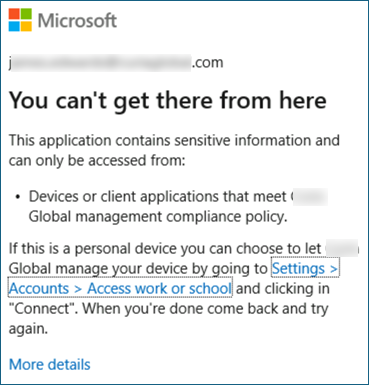
Here is the JSON for creating this conditional access programmatically. Key grant controls are highlighted.
{
  "displayName": "B010: [BYOD] Block Thick Client Access",
  "state": "enabled",
  "conditions": {
    "users": {
      "includeGroups": [
        "{{Object-ID-of-EID_Users_On_Managed_Devices}}"
      ],
      "excludeGroups": [
        "{{Object-ID-of-EID_Emergency_Admin_Exclusions}}"
      ]
    },
    "applications": {
      "includeApplications": [
        "All"
      ]
    },
    "platforms": {
      "includePlatforms": [
        "windows",
        "macOS"
      ],
      "excludePlatforms": [
        "iOS",
        "android"
      ]
    },
    "clientAppTypes": [
      "mobileAppsAndDesktopClients",
      "exchangeActiveSync",
      "other"
    ]
  },
  "grantControls": {
    "operator": "OR",
    "builtInControls": [
      "compliantDevice",
      "domainJoinedDevice"
    ]
  }
}
P004 [BYOD] Enforce Limited Web Access
When a user accesses Exchange Online or Teams/SharePoint via a web browser on an unmanaged device, this policy kicks in and signals the cloud apps to enforce limited access. Exchange Online (OWA) will operate in a read-only mode for attachments (users cannot download or save attachments from email). SharePoint and OneDrive will similarly block the download, print, and sync options for files. The Teams web app will allow chatting and online meetings, but if a user attempts to open or download a file in Teams, they will only be able to view it online (no download option). Users on Hybrid-joined devices are not impacted by this limited-access policy when using supported browsers, so they retain full functionality. You should verify that the user experience matches expectations before enabling broadly.
Assignments – Users:
- Include: EID_Users_On_Managed_Devices
- Exclude: EID_Emergency_Admin_Exclusions
Assignments | Target resources: Office 365
Conditions:
-
Client apps = Browser
Hybrid joined or compliant devices are not impacted because they satisfy the managed device Conditional Access policy. This prevents them from reaching this app-enforced restrictions policy, so SharePoint receives a full access session instead of a limited one.
Session: Select “Use app enforced restrictions”
SharePoint must be configured to honor app-enforced restrictions. See the Unmanaged Device Access settings in the SharePoint Admin Center for the required server-side setting.
You will receive a warning that this policy will trigger end user prompts when the device is checked for compliance even in report only mode. I accept this tradeoff to be able to enable all policies at the start of the project.
- User Experience
- Configuration Details
The limited experience will look like this.
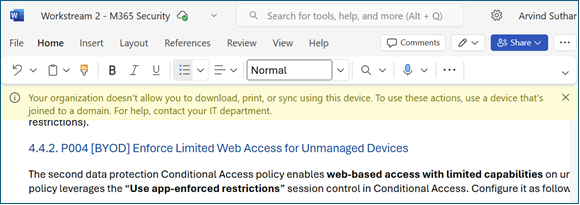
Here is the JSON for creating this conditional access programmatically. Key session control is highlighted.
{
  "displayName": "P004 [BYOD] Enforce Limited Web Access",
  "state": "enabled",
  "conditions": {
    "users": {
      "includeGroups": [
        "{{Object-ID-of-EID_Users_On_Managed_Devices}}"
      ],
      "excludeGroups": [
        "{{Object-ID-of-EID_Emergency_Admin_Exclusions}}"
      ]
    },
    "applications": {
      "includeApplications": [
        "2793995e-0a7d-40d7-bd35-6968ba142197"
      ]
    },
    "clientAppTypes": [
      "browser"
    ],
    "deviceStates": {
      "excludeDeviceStates": [
        "compliant",
        "domainJoined"
      ]
    }
  },
  "grantControls": {
    "operator": "OR",
    "builtInControls": [
      "block"
    ]
  },
  "sessionControls": {
    "applicationEnforcedRestrictions": {
      "isEnabled": true
    }
  }
}
P005 [BYOD] Enforce Mobile App Protection
This Conditional Access policy requires the use of Intune app protection policies (MAM) when accessing Office 365 from mobile devices. This enables the use of Intune-defined app protection policies (more restrictive for BYOD devices, less restrictive for MDM devices), providing additional control beyond the “Use app-enforced restrictions” session control in the previous policy. We should test this policy, especially for managed mobile devices.
On iOS and Android, Microsoft Edge is the only browser that satisfies "Require app protection policy." Safari, Chrome, Firefox, Samsung Internet, and every other mobile browser are blocked at sign-in. Users see a "use Microsoft Edge" prompt rather than the Office 365 content. Native Microsoft 365 apps (Outlook, OneDrive, Teams, Word, Excel, PowerPoint) satisfy the policy on their own.
Before enabling P005 in enforce mode:
- Communicate to users that mobile browser access requires Edge.
- For MDM-enrolled mobile devices, deploy Edge as a required app via Intune so users do not hit the CA denial first and then get told to install something.
- Test on at least one iOS and one Android device: the Edge MAM enrollment prompt has account-add timing edge cases that are easier to fix before they hit users.
See Microsoft's Require approved app or app protection policy and Manage Microsoft Edge on iOS and Android with Intune for the supported-app matrix and Edge MAM provisioning.
Assignments – Users:
- Include: EID_Users_On_Managed_Devices
- Exclude: EID_Emergency_Admin_Exclusions
Assignments | Target resources: Office 365
Conditions | Client Apps: Select Mobile apps and desktop clients
Conditions | Device platforms: Select Android, iOS
Grant
- Require app protection policy
- User Experience
- Configuration Details
Users blocked by this policy will see an error like this.
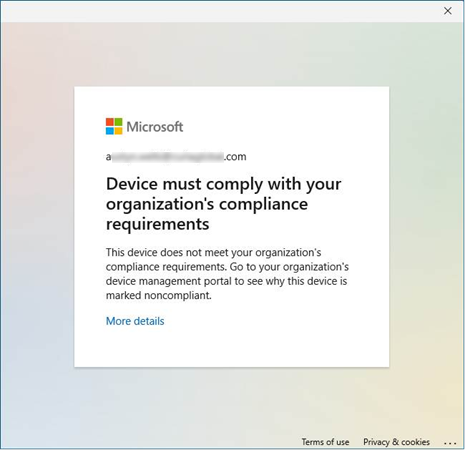
Here is the JSON for creating this conditional access programmatically. Key session control is highlighted.
{
    "displayName": "P005 [BYOD] Enforce Mobile App Protection",
    "state": "enabledForReportingButNotEnforced",
    "conditions": {
        "userRiskLevels": [],
        "signInRiskLevels": [],
        "clientAppTypes": [
            "mobileAppsAndDesktopClients"
        ],
        "platforms": {
            "includePlatforms": [
                "android",
                "iOS"
            ]
        },
        "users": {
            "includeGroups": [
                "GUID-FOR-EID_Users_On_Managed_Devices"
            ],
            "excludeGroups": [
                "GUID-FOR-EID_Emergency_Admin_Exclusions"
            ]
        },
        "applications": {
            "includeApplications": [
                "00000002-0000-0ff1-ce00-000000000000",
                "00000003-0000-0ff1-ce00-000000000000"
            ]
        }
    },
    "grantControls": {
        "operator": "OR",
        "builtInControls": [
            "managedAppProtection"
        ]
    }
}
P006 Require compliant devices for O365, Azure, and Management
Assignments – Users:
- Include: EID_Users_On_Managed_Devices
- Exclude: EID_Emergency_Admin_Exclusions
Assignments | Target resources:
-
Office 365
-
Microsoft Admin Portals
-
Windows Azure Service Management API: only include if the tenant has an Azure subscription. In GCC High, this appears as Azure Government Cloud Management API. If the tenant is M365-only with no Azure subscription, this service principal does not exist in the tenant and should be omitted.
Access Controls | Grant:
- Require device to be marked as compliant OR
- Require Microsoft Entra Hybrid Joined device
You will receive a warning that this policy will trigger end user prompts when the device is checked for compliance even in report only mode. I accept this tradeoff to be able to enable all policies at the start of the project.
- User Experience
- Configuration Details
Users blocked by this policy will see an error like this.
Here is the JSON for creating this conditional access programmatically. Key session control is highlighted.
{
    "displayName": "P006 Require compliant devices for O365, Azure, and Management",
    "state": "enabledForReportingButNotEnforced",
    "conditions": {
        "userRiskLevels": [],
        "signInRiskLevels": [],
        "clientAppTypes": [
            "all"
        ],
        "users": {
            "includeGroups": [
                "GUID-FOR-EID_Users_On_Managed_Devices"
            ],
            "excludeGroups": [
                "GUID-FOR-EID_Emergency_Admin_Exclusions"
            ]
        },
        "applications": {
            "includeApplications": [
                "00000002-0000-0ff1-ce00-000000000000",
                "00000003-0000-0ff1-ce00-000000000000",
                "797f4846-ba00-4fd7-ba43-dac1f8f63013"
            ]
        }
    },
    "grantControls": {
        "operator": "OR",
        "builtInControls": [
            "compliantDevice",
            "domainJoinedDevice"
        ]
    }
}
B011: [Token Theft] Require Token Protection on Native Clients
Microsoft's product name is Token Protection. Industry/press/Gartner calls the same capability token binding, device-bound tokens, or proof-of-possession (PoP). Same thing.
Token Protection defeats the most common modern identity attack: adversary-in-the-middle (AiTM) phishing (EvilProxy, Tycoon, Mamba). These kits don't try to steal passwords: they steal the session token issued after MFA. The victim authenticates normally; the attacker walks off with a cookie that's just as good as the user's full credentials.
Token Protection cuts that off by cryptographically binding the Primary Refresh Token (PRT) to the device that received it (via TPM on Windows, software keystore elsewhere). When a client requests an access token, it must present the PRT and a signature proving possession of the device secret. A stolen bearer token from another machine fails the signature check and is rejected.
What's supported
Per Microsoft Learn: Token Protection in Microsoft Entra Conditional Access:
| Platform | Status | Supported apps |
|---|---|---|
| Windows | GA | Teams, SharePoint, Exchange Online: native clients only |
| iOS / iPadOS | Preview | — |
| macOS | Preview | — |
Critical limit: browser-based apps are not supported today. Token Protection alone is not a complete anti-replay solution: pair it with CAE strict location enforcement for browser sessions and compliant-device requirements for unregistered devices.
Token Protection requires a PRT, which is only issued to Entra-joined or Entra-registered devices. If your CA policy includes unregistered/BYOD users in scope, this policy will block them. Pilot in Report Only mode and verify device-registration coverage before enforcing.
Assignments | Users:
- Include: EID_Users_On_Managed_Devices
- Exclude: EID_Emergency_Admin_Exclusions
Assignments | Target resources: Office 365 (covers Teams, SharePoint, Exchange Online: the supported app set)
Conditions | Device Platforms: Include Windows (only platform GA at time of writing)
Conditions | Client apps: Mobile apps and desktop clients (browser is excluded: Token Protection has no effect there)
Access Controls | Session: Require token protection for sign-in sessions
Deployment guidance
- Report-only first. Enable in report-only mode and watch sign-in logs for
Token protection enforcement failedevents to surface unregistered devices or unsupported app paths. - Start with Windows + native Teams/SharePoint/Exchange. That's the GA lane; everything else is preview or unsupported.
- Expect to extend coverage over time. Microsoft is steadily adding apps and platforms: the supported list is the source of truth, not this chapter.
License: Microsoft Entra ID P1 (CA itself).
Related primary source: Protecting tokens in Microsoft Entra: the full defense-in-depth article covering VBS key protection, PoP tokens, CAE strict location, and Platform SSO for macOS as complementary controls.
📩 Don't Miss the Next Solution
Join the list to see the real-time solutions I'm delivering to my GCC High clients.