Cross-Tenant Collaboration
A former boss at Microsoft, Bharat Shah, once told us - Microsoft's Identity Engineering team, "Logging in is great, I love logging in, I do it every day. But what matters is what I do after I login." And what matters most today is collaboration: most often in Microsoft Teams, and not restricted to your organization. This section helps you manage cross-org collaboration while fulfilling your duty to protect Controlled Unclassified Information.
Cross-Cloud Considerations
Many GCC High applications and features are not supported or are limited. This section focuses on the limitations of Teams External Access for cross-cloud collaboration. Cross-cloud Teams behavior is more restricted than cross-tenant Teams behavior within the same cloud. The loss of group chat is the most significant limitation (loss of emoji’s is another) and may prevent your organization (or its externally focused users) from fully committing to GCC High. You want to secure your business. But you want to ensure you still have a business to secure. The documentation says it works. You enable External Access in settings, test a chat with someone from another org, it works! You check the box and move on to the next project. But the limitations below will catch up with you.
Teams External Access: Limitations
It works for simple chat and calling, but the moment your users need to actually collaborate (react to a message, add someone to a group discussion, share a file in a meeting, work together in a channel), they can’t. And suddenly you’re explaining to frustrated executives why they can’t work normally with external partners despite “working for months to get this working”.
Teams B2B Guest Access: Overview
Teams External Access and Cross-Cloud Meeting Join enable a degree of external collaboration without provisioning accounts (B2B guest or local):
- Teams External Access for casual external contact (no group chatting, file sharing, message reactions)
- Cross-Cloud Meeting Join for verified external user identities (conditional access, lobby bypass)
- My Recommendation: Maximally leverage cross-cloud B2B using Entra ID B2B Guests
- Mainly GCC High – Swivel to Commercial When Needed: Some organizations follow a “GCC High Unless” model, provision most of their users in GCC High because they are not quite sure where CUI is being handled, and employ a dual-account/swivel-seat model for users who also need full-fidelity Teams collaboration with Commercial users.
- Mainly Commercial – Swivel to GCC High When Needed: Some organizations follow a “Commercial Unless” model, provision most of their users in Commercial because CUI handling is a small part of their business, and, to meet federal data handling requirements without issuing new hardware, deploy a secure enclave in GCC High for handling CUI.
All three approaches can coexist. All three are defensible to a compliance assessor. My recommendation for one account per user is simpler for users ("which account did I use for that?") and based on three facts:
- Users have crystal clear expectations for real-time, high-fidelity Internet collaboration. Inconsistent collaboration experiences depending on which account you happen to be using is not a great user experience.
- Microsoft has clearly communicated its focus on B2B vs. Teams Shared Channels and Cross-Cloud Meeting Join.
- B2B Guest accounts enable a medium-fidelity, governed Teams experience, the best cross-cloud compromise achievable today.
Configuration
Teams External Access: Configuration
People sometimes assume that cross-cloud Teams chat is not possible. It is possible, but, in addition to enabling External Access, a verified domain is required (which some enclave deployments don't configure right away) and DNS records for standard federation. For any Microsoft Teams organization to chat with an external organization, regardless of cloud type, the SRV record for federation must exist in public DNS.
- GCC High
- Commercial
GCC High tenant SRV record
- Service:
_sipfederationtls - Protocol:
_tcp - Port:
5061 - Target:
sipfed.online.gov.skypeforbusiness.us
Commercial tenant SRV record
- Service:
_sipfederationtls - Protocol:
_tcp - Port:
5061 - Target:
sipfed.online.lync.com
If these records are missing, the tenant is effectively invisible to external federated chat requests.
- Gotcha #1: Changing to a verified domain may require some extra steps.
- Federated chat requires a verified domain to host these SRV records. After changing a user’s domain from an onmicrosoft domain, you may need to hard refresh the browser, log out and back in, or log in using an InPrivate/Incognito session to see the custom domain appear in the Me control in the top-right corner of the Teams window.
- Gotcha #2: A legacy SRV record may interfere with external federation.
- Despite not being a documented requirement, if this
_sipSRV record exists in your DNS, it must point to the correct endpoint for your cloud.
- Despite not being a documented requirement, if this
- GCC High
- Commercial
- Service:
_sip - Protocol:
_tls - Port:
443 - Target:
sipdir.online.gov.skypeforbusiness.us
- Service:
_sip - Protocol:
_tls - Port:
443 - Target:
sipdir.online.lync.com
Teams B2B Guest Access: Configuration
B2B Collaboration is OFF by default. You must configure Cross-Tenant Access Settings to trust commercial partners manually before applying Guest CA policies.
This section focuses on cross-cloud Teams collaboration via B2B, building on my post about securing organizations that span Microsoft’s Commercial and GCC High clouds. Thomas Turner also has a good video walkthrough of the end-user experience. Here’s what works smoothly once everything’s set up:
- Global Address List (GAL) allows people to find each other for emailing
- People Picker in Teams allows people to find each other for chatting
- Share Dialog in SharePoint allows people to find each other for document sharing
These settings enable cross-cloud guests in both tenants. Some clients prefer to allow GCC High guests in their Commercial tenant and not vice versa.
- Supported Apps: Teams (chats, meetings, calling, file sharing), SharePoint, OneDrive, Power BI (with limitations), 3rd party Entra-integrated apps
- Not Supported: Planner, Stream, Yammer, Viva Engage, some Exchange/Outlook features
- License Requirements: Entra ID P1/P2 (or Microsoft 365 E3/E5)
Entra ID Cross-Tenant Access Settings
In both tenants (Commercial and GCC High):
- Go to Microsoft Entra Admin Center → External Identities → Cross-tenant access settings.
- Under Organizational Settings -> Add organization
- Under Inbound access:
- Allow B2B collaboration.
- Under Outbound access:
- Allow B2B collaboration.
- Under Inbound access:
- Under Microsoft cloud settings
- In Commercial: check Microsoft Azure Government
- In GCC High: check Microsoft Azure Commercial
- Under Organizational Settings -> Add organization
Teams-Specific Settings
In Teams Admin Center → External Access:
- Add the other tenant’s domain (e.g.,
contoso.com) to the allowed domains list. - Ensure Teams and Skype for Business users in external organizations are allowed to communicate.
In Teams Admin Center → Guest Access:
- Turn on Guest access and allow required features (chat, calls, file sharing).
Recommended Configuration
These additional settings simplify your end-user experience and strengthen your security posture.
Entra ID Cross-Tenant Access Settings
In both tenants (Commercial and GCC High):
- Go to Microsoft Entra Admin Center → External Identities → Cross-tenant access settings.
- Under Organizational Settings -> [your tenant in the other cloud]
- Under Inbound access | Trust Settings:
- Trust multifactor authentication from Microsoft Entra tenants (this prevents users from needing to re-register MFA in your tenant)
- Trust compliant devices (if you manage device compliance in the other cloud tenant)
- Trust Microsoft Entra hybrid joined devices (if you manage Microsoft Entra hybrid joined devices in the other cloud tenant)
- Automatically redeem invitations with the tenant [your tenant in the other cloud]
- Under Outbound access | Trust settings
- Automatically redeem invitations with the tenant [your tenant in the other cloud]
- Under Inbound access | Trust Settings:
- Under Organizational Settings -> [your tenant in the other cloud]
Guests Cannot Register Passkeys in Your Tenant
Trust multifactor authentication from Microsoft Entra tenants is not a convenience setting. It is the only way a B2B guest can meet a phishing-resistant requirement in your tenant. Microsoft lists the reason as a known issue: "Registration of passkey (FIDO2) credentials isn't supported for internal or external guest users, including B2B collaboration users in the resource tenant" (passkey known issues). Where the guest completes MFA decides which methods count (authentication strengths for external users):
| Trust MFA from Microsoft Entra tenants | Where the guest completes MFA | Methods that satisfy an authentication strength |
|---|---|---|
| On | Home tenant | The home tenant's claims, including FIDO2 passkey, Windows Hello for Business, and certificate-based authentication |
| Off | Your tenant | SMS, voice call, Authenticator push, and OATH software token only |
With trust off, a Conditional Access policy that requires the Phishing-resistant MFA strength for guests cannot be satisfied: the guest cannot register a passkey with you, and nothing they can register meets the strength. Users report it as "passkeys don't work for guests." With trust on, a passkey the guest holds in their own tenant satisfies the strength. The phishing-resistant variant of G001 depends on this setting.
Three consequences for the design:
- The partner's tenant has to issue the passkey. A partner that has not deployed passkeys has no phishing-resistant path into your tenant, and no setting on your side changes that.
- Authentication strengths apply only to guests who authenticate with Microsoft Entra ID. Email one-time passcode, SAML/WS-Fed, Google, and personal Microsoft account guests can be held only to Require multifactor authentication (require MFA strength for external users).
- The known issue covers internal guests too (a local account with user type Guest). Giving a partner a local account helps only if it is a Member, with the licensing and governance that implies.
Guests in a tenant that enforces the phishing-resistant strength on all resources can also hit the passkey registration loop described in Chapter 9; Microsoft documents the guest case in its B2B troubleshooting guide.
Guest Creation
Invitation and Invitation Acceptance
You must invite the guest from the other tenant, and the guest must accept the invitation. The need for guest acceptance can be bypassed with the Automatically redeem invitations setting mentioned in the previous section.
Usage location
Be sure to set the Usage location attribute when creating the user. Some Microsoft 365 features won’t work without a valid usage location.
Guest vs. Member
The external user must be a Guest user type, not a Member user type**,** for external access in Teams to work.
Add the Guest to a Team
The external Guest user must be added to a Team to complete the required Teams initialization.
Tenant Switching
You should be able to switch back and forth between your Commercial Teams web app and GCC High Teams web app.
In GCC High Teams, you can tenant-switch to your Commercial tenant, which will open a new tab and navigate to https://teams.microsoft.com/v2/.
In Commercial Teams, you can tenant switch to the GCC High tenant, which will open a new tab and navigate to the GCC High version of Teams. However, I have seen it take several hours for that option to appear in the web app. If there is no tenant switch option, you must navigate to https://gov.teams.microsoft.us/v2. However, if you go there directly, you may encounter a “[your domain] isn’t in our system. Make sure you typed it correctly.” error message. You can work around this error by using the link that was sent to you when your account was added to the GCC High Team.
Clean Testing: User Removal, Signing Out of Existing Browser Tab Sessions
If you are like me, you have lingering external users or browser tabs from previous cross-cloud Teams chat testing. These browser tabs may receive messages, but not allow sending messages with “Failed to send” errors. Do yourself a favor: sign out of these browser tabs, remove previous external users from Teams, Entra, and deleted users before testing. Even after doing all this, you may see multiple identical entries in your Teams picker when adding the external user to a Team. One of them (usually the one further down the list) should work. You may also see chats with the dreaded “You can’t send messages because you are not a member of the chat.” error message. You can ignore these chats; I’ve been unable to delete them.
Automation
Teams External Access does not require a guest account for each user. Teams B2B Guest access does. Here are three approaches you can take to automate the provisioning of guest accounts.
Approach 1: Guest By Request
Some organizations are content to allow users to request access via My Access and use Entitlement Management to implement a governed “access-on-demand” model where users can search for content, request access, and have their guest access lifecycle governed by Entitlement Management and Access Reviews. This doesn’t provide a unified GAL or Teams Picker, but does provide users with governed access to content published from the other tenant.
Approach 2: Cross-Tenant Sync
For companies that want to keep B2B users in sync, Microsoft offers cross-cloud synchronization in preview. In GCCH, this will be part of the Microsoft Entra ID Governance for Government SKU priced at $84/user/year. In Commercial, this will be part of the Microsoft Entra Suite, also priced at $84/user/year. For a 20,000-user company syncing half of their users to the other tenant, this would be 10,000 users x $84/user/year = $840,000/year.
Approach 3: Mindline Identity Bridge
For companies that don’t need the additional capabilities in Entra ID Governance or Entra ID Suite, they can use Mindline Identity Bridge priced at .10/user/month. For a 20,000-user company syncing half of their users to the other tenant, this would be 10,000 users x $1.20/user/year = $12,000/year – a 98.6% savings.
Compliance
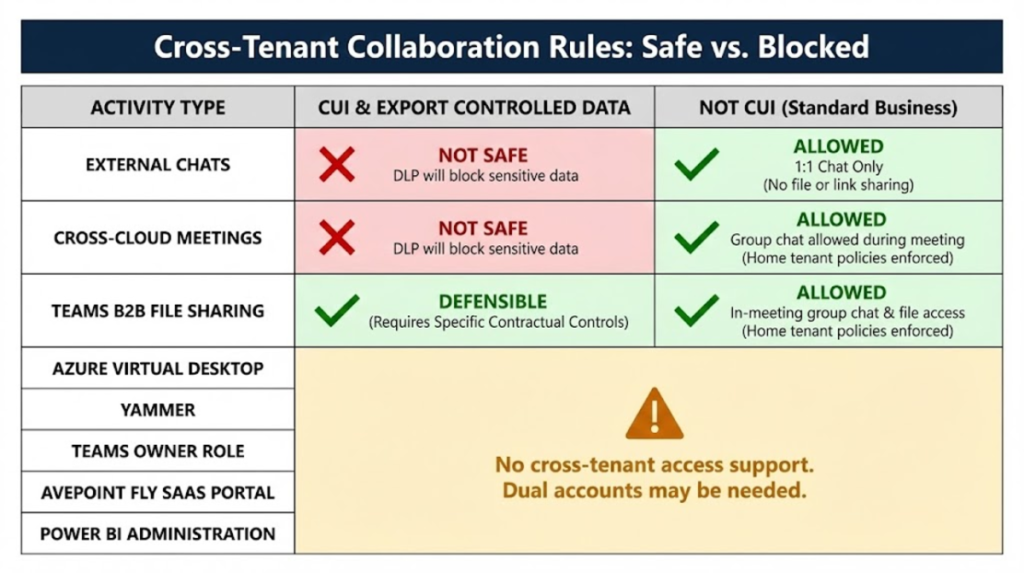
We are talking about GCC High because you need to control the storage and movement of CUI. This is another reason to be skeptical about Teams External Access and Cross Cloud Meeting Join. You can configure DLP to block exfiltration of CUI from your GCC High environment, but having an actual Commercial B2B Guest User in a GCC High Team enables much more control over access and storage of CUI. Here is a table that shows the safety/feasibility of cross-tenant CUI access.
📩 Don't Miss the Next Solution
Join the list to see the real-time solutions I'm delivering to my GCC High clients.